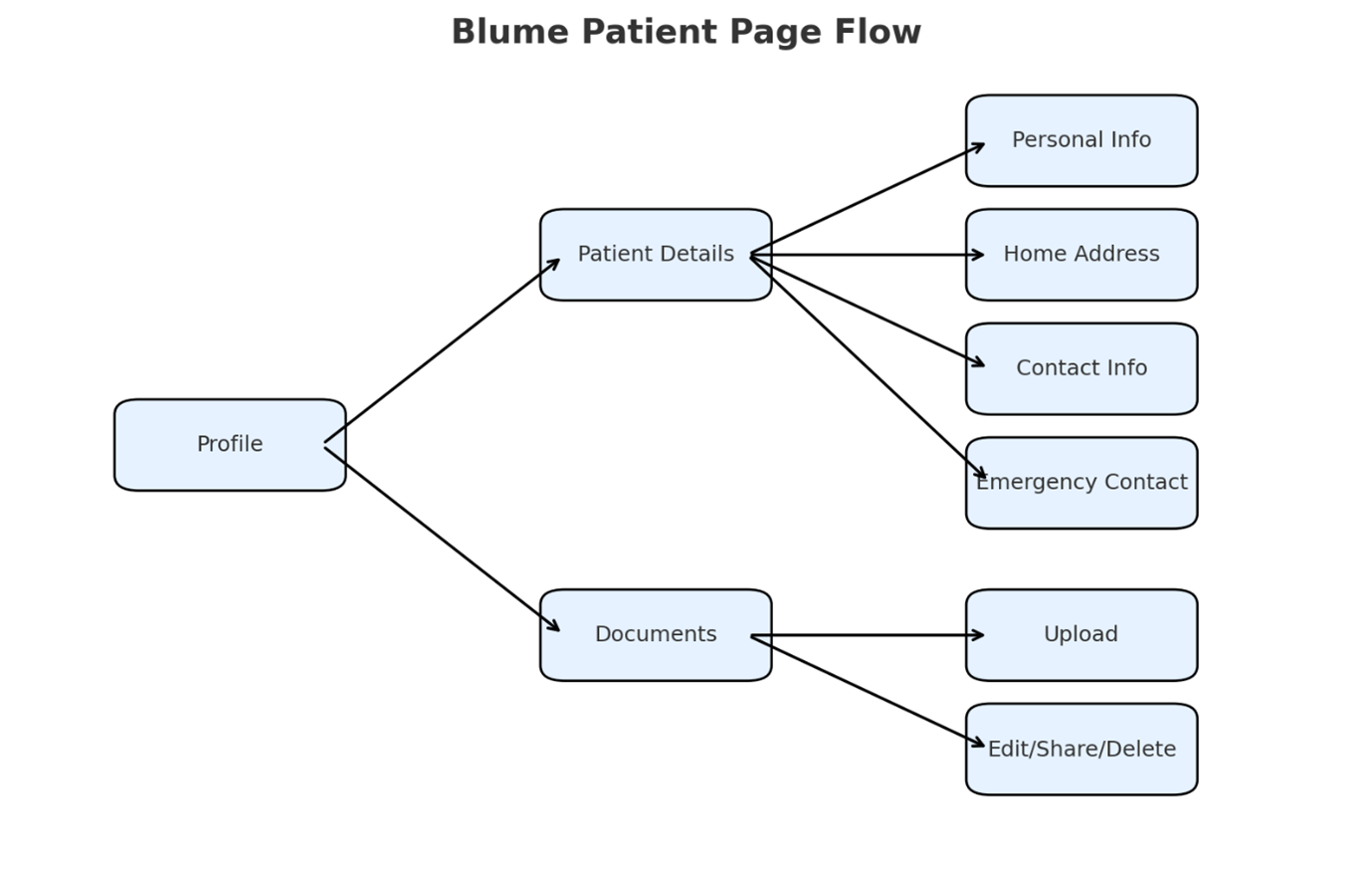
Profile Tabs
The Profile section is divided into two tabs:
- A. Patient Details
- B. Documents
A. Patient Details
The Patient Details tab includes four settings:
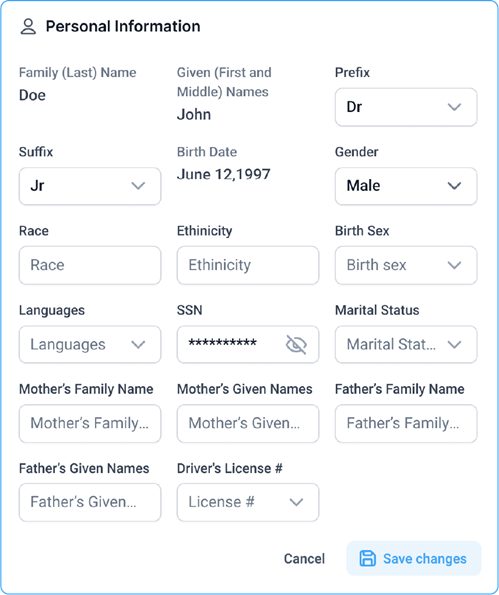
I. Personal Information
- Matches the fields available in the OmegaAI Personal Information section.
- Non-editable fields: Name and Date of Birth. Once entered during account creation, only the associated organization can update them.
- Editable fields: All other fields can be added or updated by the user. Note: Alcohol and smoking use fields have been removed, as these are managed by the healthcare organization.
Region-Specific Identification Document Fields
Blume displays identification document fields on your patient profile page based on the region set in your account. The fields shown, their formats, and their character limits vary by region. All identification fields are optional.
Overview
| Region | Field Label | Format | Required? |
|---|---|---|---|
| United States | Social Security Number (SSN) | XXX-XX-XXXX | No (optional) |
| India | Health Card Number | Up to 15 alphanumeric characters | No (optional) |
| India | Aadhaar Number | XXXX-XXXX-XXXX | No (optional) |
| Canada | Health Card Number | Up to 15 alphanumeric characters | No (optional) |
| Any other Region | Health Card Number | Any alphanumeric format | No (optional) |
A. United States
If your region is set to the United States, your patient profile page displays the following field:
- Field label: Social Security Number (SSN)
- Format: XXX-XX-XXXX
- This field is optional.
B. India
If your region is set to India, your patient profile page displays the following fields:
- Field label: Aadhaar Number
- Format: XXXX-XXXX-XXXX
- This field is optional.
C. Canada
If your region is set to Canada, the identification field displayed on your patient profile page depends on whether your specific province can be determined.
If you are in Canada:
- Field label: Health Card Number
- This field is optional.
- Maximum character limit: 15 characters. The field stops accepting input after 15 characters. No error message is shown.
If you are in any other Province apart from Canada (generic fallback):
- Field label: Health Card Number
- This field accepts any alphanumeric format.
- This field is optional.
Skipping identification fields:
If you leave the identification fields empty and save your profile, the profile saves successfully. No error or warning is shown.
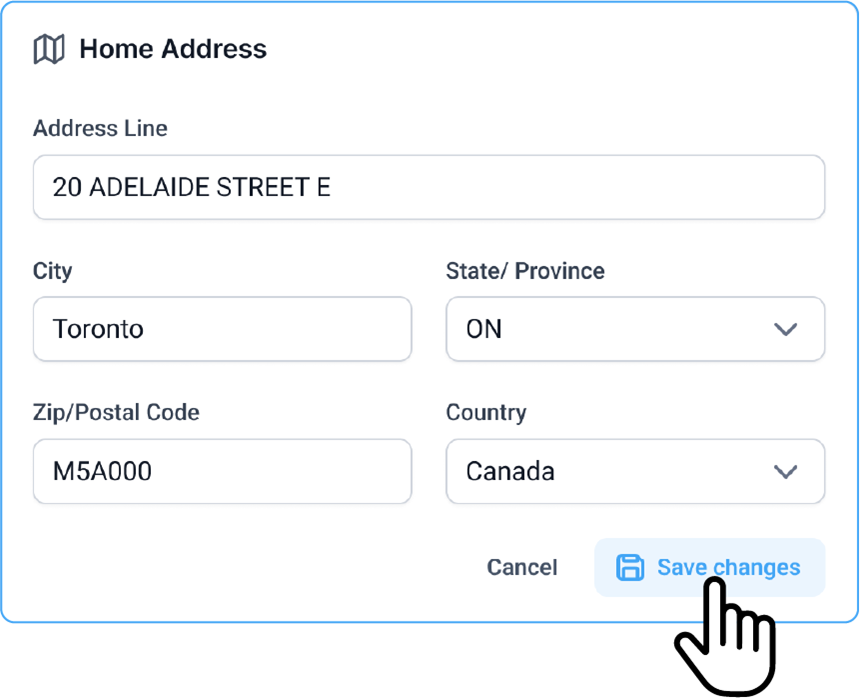
II. Home Address
- Fully editable. Users can:
- Enter details manually or search the address line.
- Autofill will suggest city, state, zip code, and country.
- Users can override auto-filled details if incorrect.
- Save & Confirmation:
- After edits, users must click Save.
- Attempting to leave without saving triggers a confirmation pop-up asking if they want to discard changes.
- If no edits are made, the pop-up will not appear.
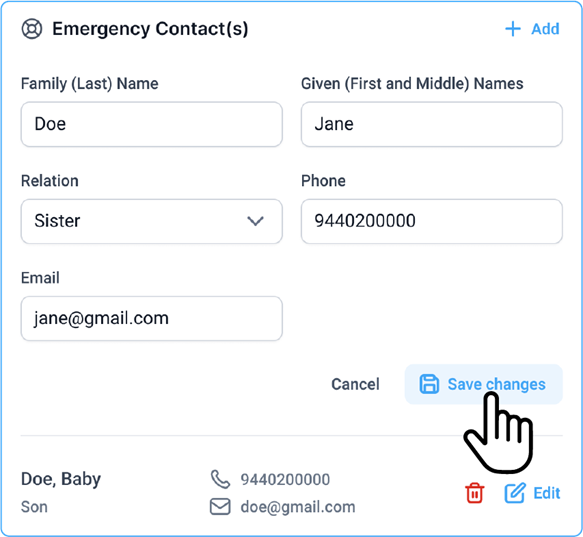
III. Emergency Contact
- If no contact is saved, the page will appear blank with an Add button.
- If a contact exists, options include Add, Edit, and Delete.
- Mandatory fields: First Name, Last Name, Phone Number.
- Optional fields: Relation, Email.
- No limit on the number of emergency contacts that can be added.
IV. Contact Information
- The primary email is set during Blume account creation.
- Users can add a phone number, which requires verification.
- Non-editable fields:
Once saved, phone numbers cannot be updated by the user. Only the healthcare organization can update them.

B. Documents
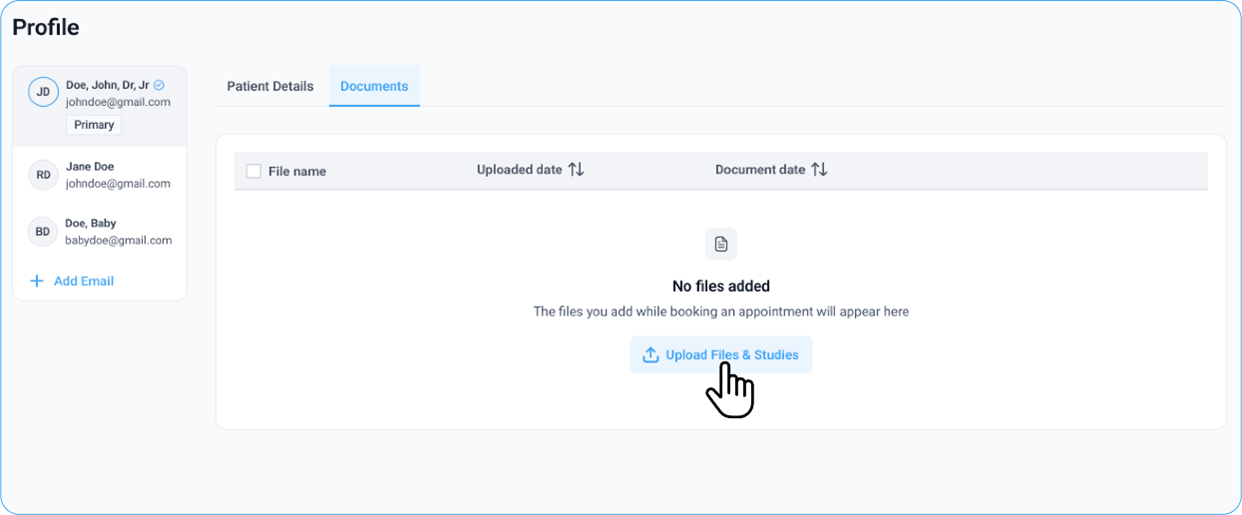
The Documents tab enables users to upload, manage, and organize documents.
I. Uploading Documents
- If no documents are available, an Upload button appears.
- The native file manager is used to select files.
- Upload progress is displayed (e.g., “2 of 3 files uploaded”).
- Once completed, documents are visible in the section.
II. Document Details
Each document displays:
- Upload Date - the date the file was uploaded.
- Document Date –
- For DICOM uploads (desktop only), the instance creation date is used.
- For other files, the document creation date is used.
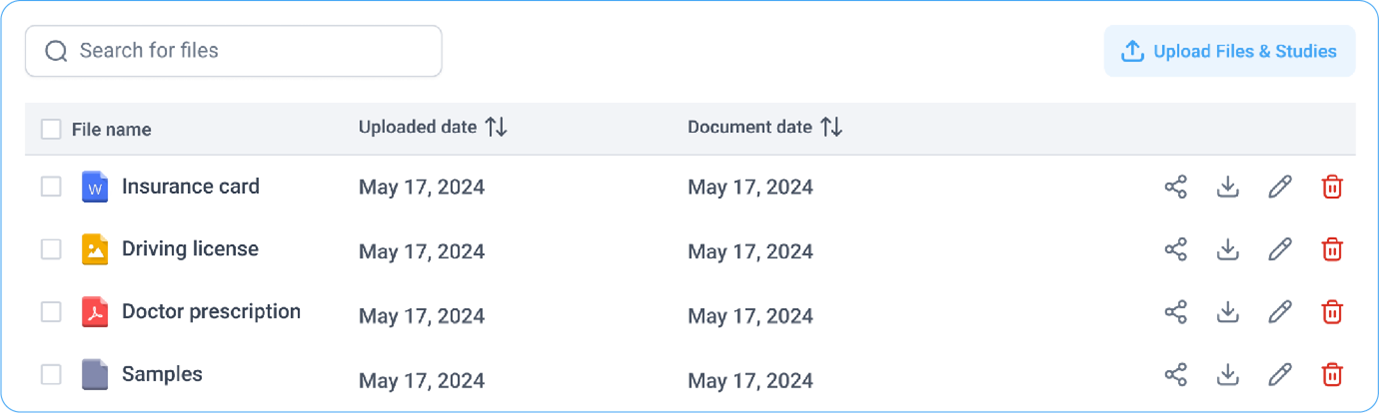
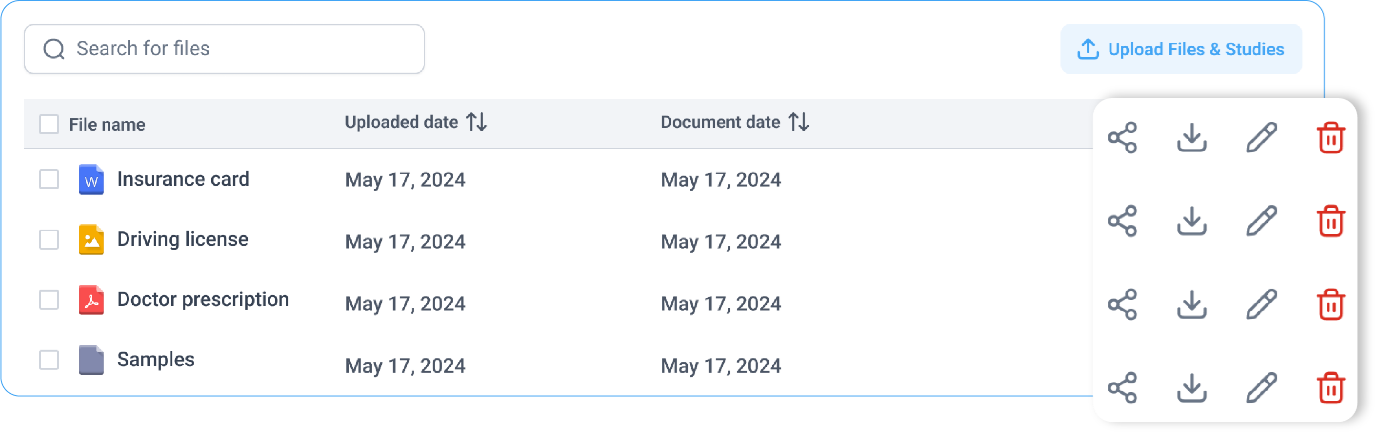
- Actions—Download, Edit, Delete.
III. Editing Documents
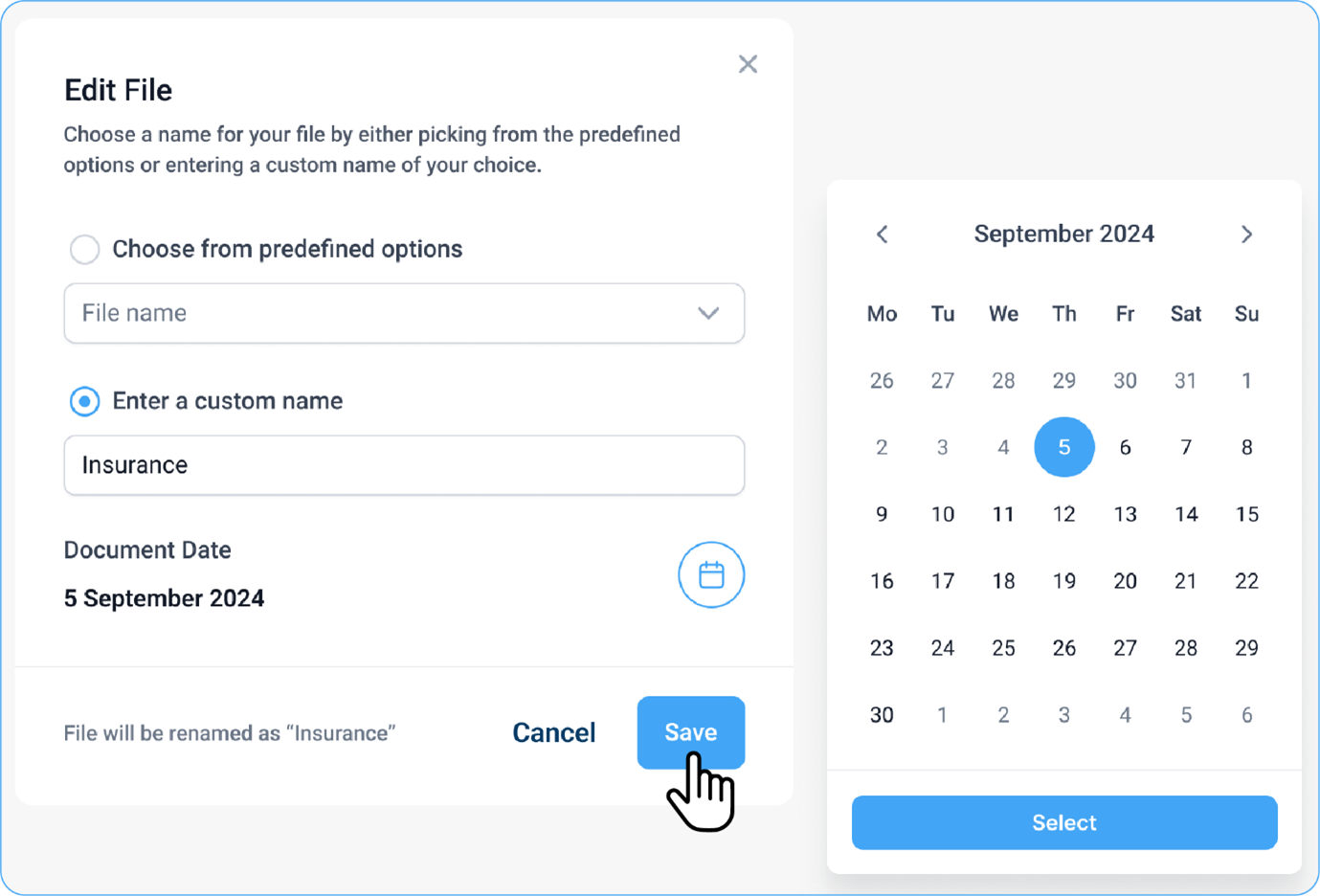
- Users can update the document name and document date.
- Document names may be
- Custom (e.g., “Insurance Card”), or
- Selected from a predefined list (e.g., driving license, insurance card, prescription).
- Document dates can be modified using the calendar picker.
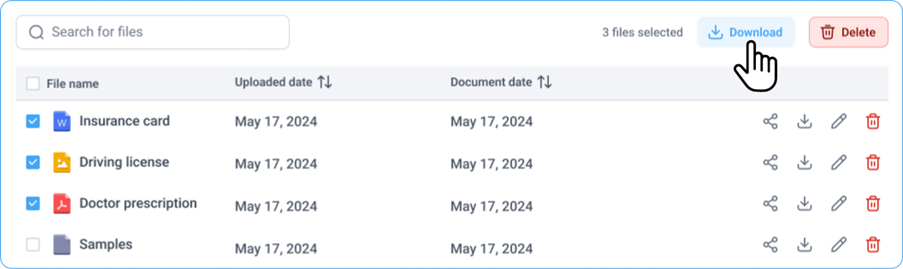
IV. Downloading and Deleting Documents
- Users can select single or multiple files.
- Multiple documents can be downloaded or deleted at once.
Note:
The Languages section has been renamed to App Languages.
Summary
The Patient Page centralizes all key personal and document-related information. With clear separation of patient details and documents and intuitive features such as tagging and upload management, the Patient Page ensures a smooth and organized experience for both primary and secondary account holders.