Connecting an Account via Mobile Number and Email
Overview
The Connect Account feature allows users to link an existing account using either a mobile number or an email address. Once connected, the system automatically syncs associated contact details, including mobile numbers and email addresses, across the account.
When is the "Connect Account" option available?
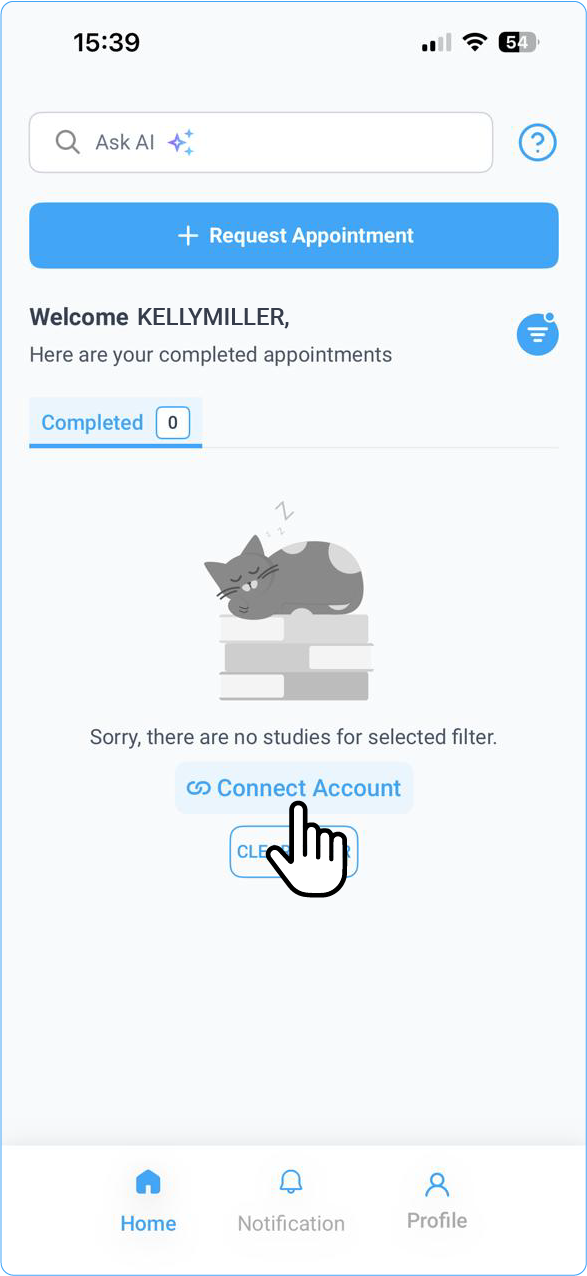
The Connect Account button is displayed when there are no studies associated with the account. Once studies exist, this option is no longer shown on the main interface.
However, the Connect Account option remains accessible from the Patient Profile, allowing users to connect an account even after studies are associated.
Supported Countries
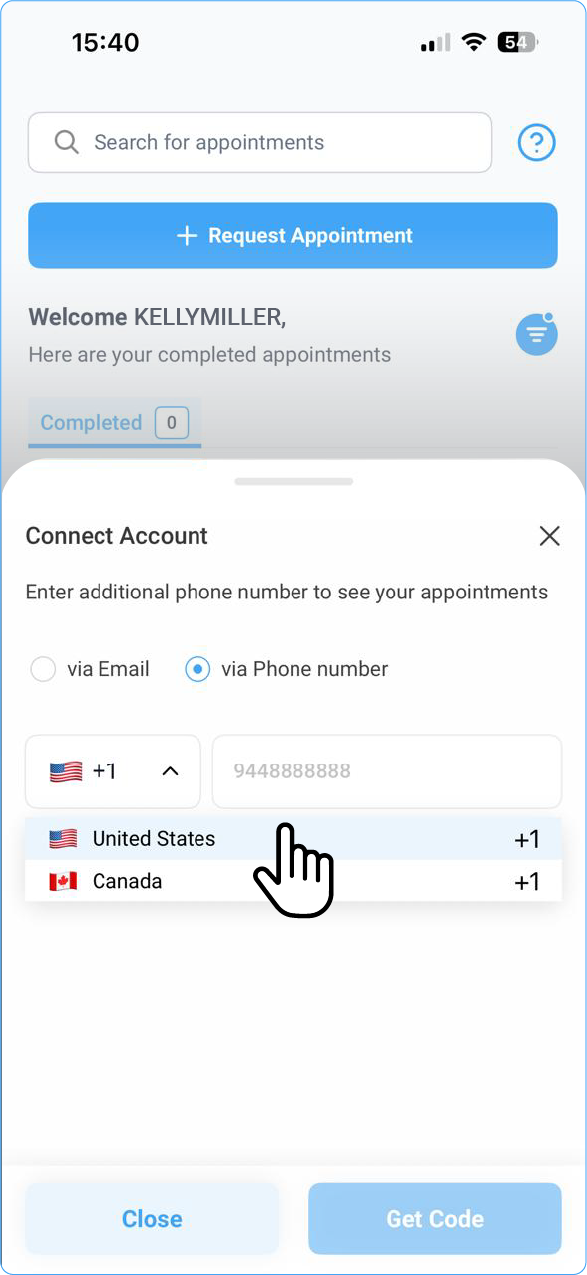
Currently, account connection via mobile number is supported for the following countries:
- United States
- Canada
Note: Email-based account connection is not country-specific.
How to Connect an Account Using a Mobile Number
-
Click the Connect Account button.
-
Select the country (United States or Canada).
-
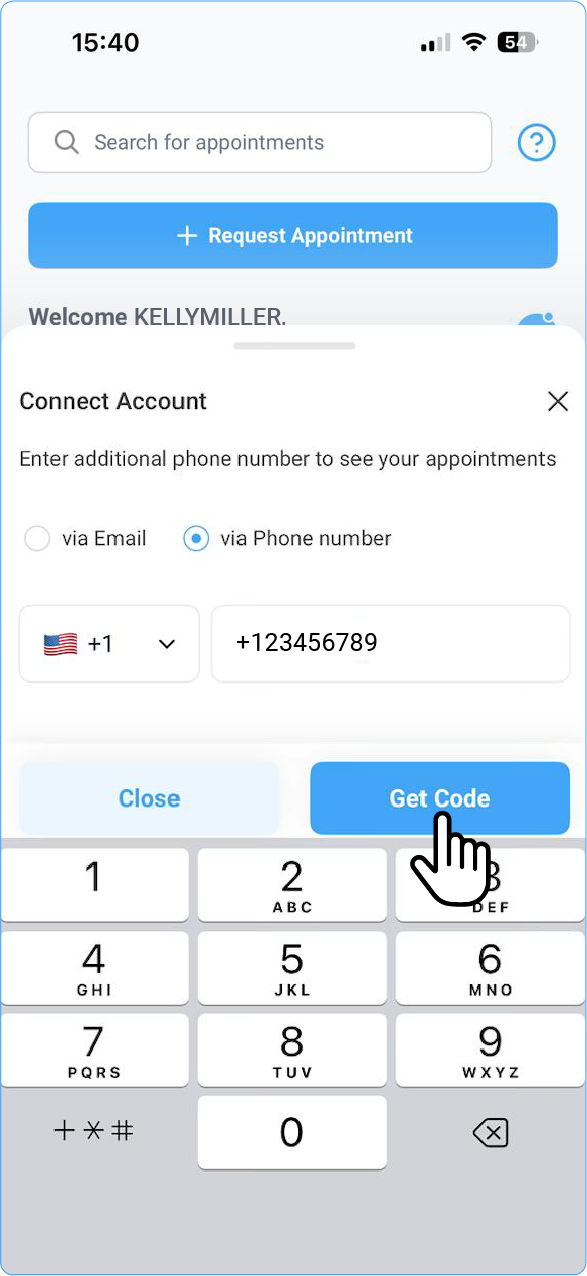
Enter a mobile number associated with your account.
-
Click Get Code.
-
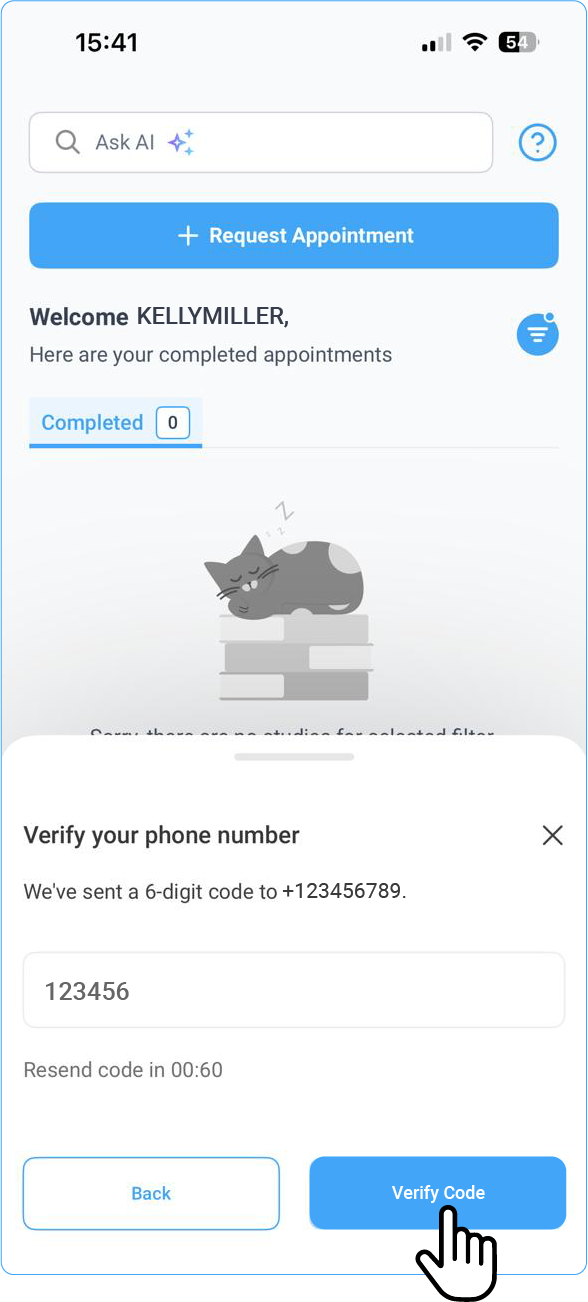
A verification code is sent to the entered mobile number.
-
Enter the verification code to verify the number and click Verify Code.
-
Once verified, the account is successfully connected.
Note:
- If the account cannot be located using the mobile number, you can try connecting the account using the email address associated with the account.
- The mobile number or email address used must match the details registered with the facility for the account to be successfully connected.
How to Connect an Account Using an Email Address
- Click the Connect Account button.
- Select the Email option.
-
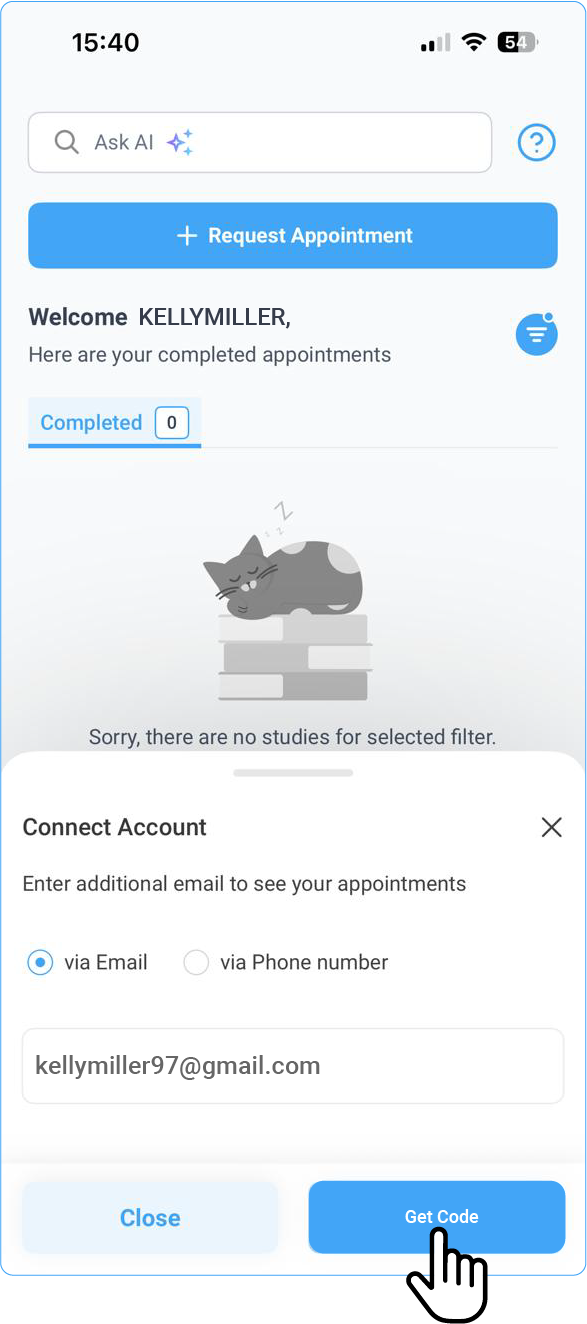
Enter the email address you want to use to connect the account.
-
Click Get Code.
-
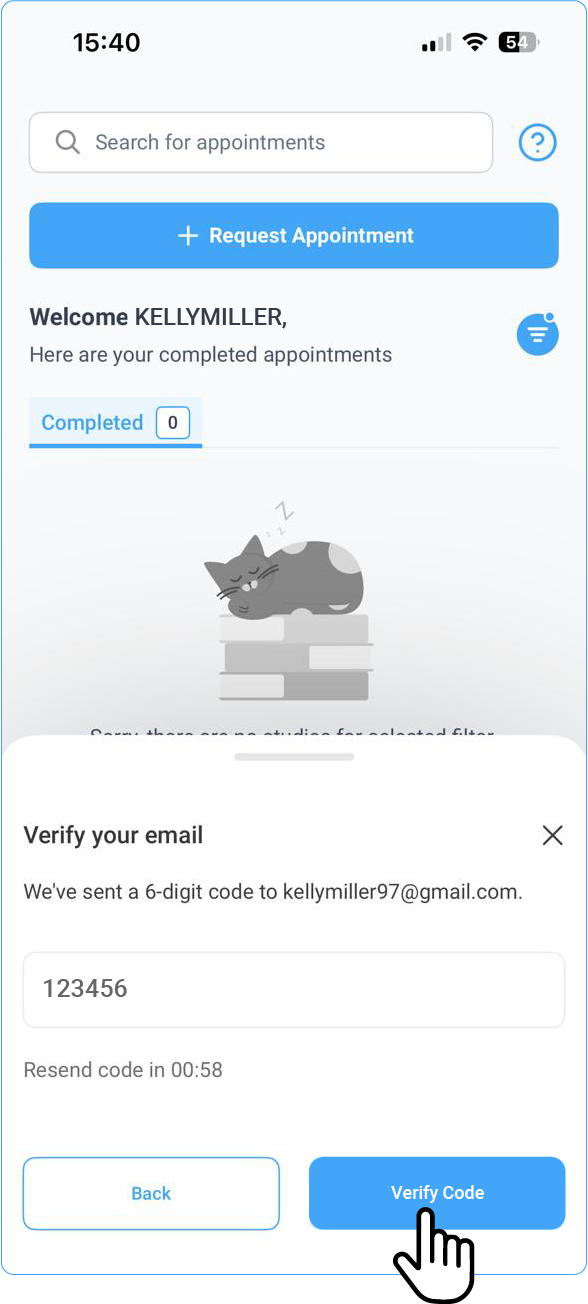
A verification code or link is sent to the entered email address.
-
Verify the email using the code provided.
-
Click Verify Code.
-
Once verified, the account is successfully connected.
Data Sync After Account Connection
After the account is connected:
- The system may take a short time to sync data.
- Once syncing is complete, additional account details become visible.
Contact Information Sync
When you navigate to Contact Information, you will see:
- Mobile number used to connect the account—This may appear as the primary or secondary mobile number, depending on how the account was connected. In some cases, the number may be listed as a secondary contact if it was used to add or connect another profile.
- Primary email address
- Secondary email address(es)
Key points:
- Before syncing, the account may not have had a mobile number.
- After syncing, the same mobile number is applied across all linked account records.
- All email addresses associated with the connected mobile number are automatically synced to the account.
This ensures consistent contact information across the entire account.
Mobile Number vs. Email Options
-
Mobile Number Connection
- Requires OTP verification
- Supports the United States and Canada only
- Syncs all email addresses associated with the mobile number
-
Email Connection
- Requires email verification
- Not restricted by country
- Syncs the verified email as a primary or secondary email, based on account configuration
On the application, you may also see an Add Email / Add Account Email option. This option is used to add or manage additional email addresses after an account is already connected.
Summary
Using the Connect Account feature:
- Accounts can be linked securely using either a mobile number or an email address.
- OTP or email verification ensures secure account linking.
- Contact details, including mobile numbers and all associated email addresses, are automatically synced.
- The option is available only when no studies exist for the account and can be accessed from the Patient Profile.
This process helps maintain accurate and consistent contact information across the system.