Downloading from the Profile Section
(Mobile and Web)
In Blume, you can download your documents and images directly from the Profile section. Additionally, you can download reports and results from the Home page under the Completed Appointments section (details provided under the Downloading Studies section).
Accessing the Profile Section
- Log in to your Blume account.
- Click your username located at the top-right corner of the home page.
- From the dropdown menu, select Profile.
- You will be taken to the Profile page, where you will see two tabs:
- Patient Details
- Documents
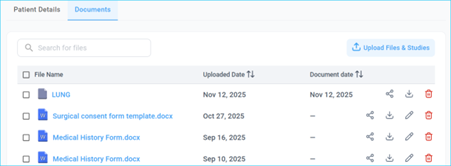
Click the Documents tab to view all available uploaded documents and DICOM images.
Downloading Images (DICOM Files)
- Select the image(s) you want to download by checking the box next to each file.
- Click the Download arrow on the right side.
- A download tracker will appear at the bottom of the screen, showing the progress percentage.
- Once the download is complete, a confirmation message will appear.
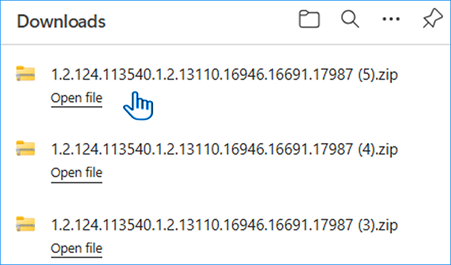
- The downloaded files will be available in your device's Downloads folder.
Downloading Documents
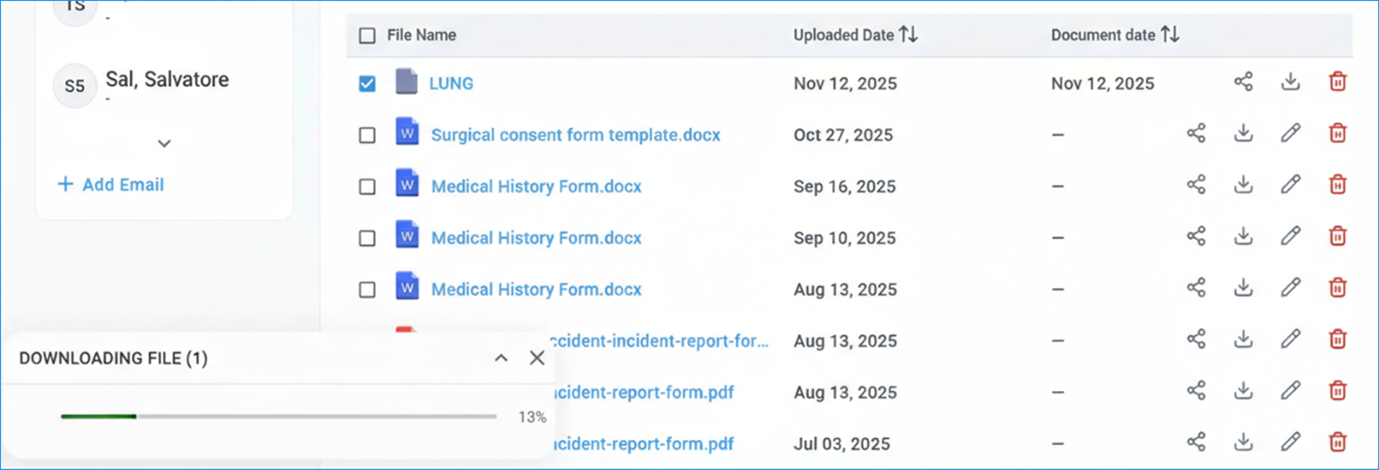
- Select the document you want to download by checking the corresponding box.
- Click the Download arrow on the right side of the file.
- The download progress will be displayed in the download tracker.
- Once completed, the document will appear in your Downloads folder.
Downloading Multiple Files
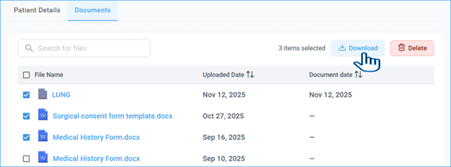
Blume allows you to download multiple files—both images and documents—at once.
- Select the desired files by checking the boxes next to each item.
- Click the Download button at the top of the files list.
- Track the progress in the download tracker.
- All selected files will be saved to your device once the download is complete.