Downloading Reports and Images
Blume allows users to download their studies and images directly from the Completed Appointments section. You can download either a single image or the entire study, as well as print or save reports for your records.
On Desktop
- Access Completed Appointments Navigate to the Completed Appointments section and select the desired study.
- Download from the Appointment Card
Click the Download Results option in the top-right corner of the selected study. You can download your complete study—including available reports, documents, and images—using this option.
- A message appears at the bottom of the screen: “Your requested study results will commence shortly.”
- The download progress will be displayed directly on the appointment card.
Note: You can also copy the study results to a CD using the Burn to CD option. (Available on web only.)
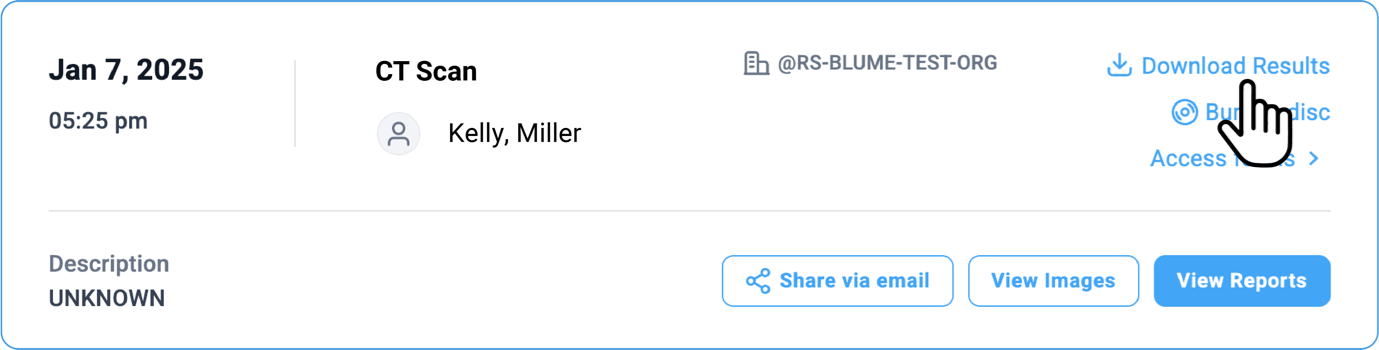
Alternative Options to Download Reports.
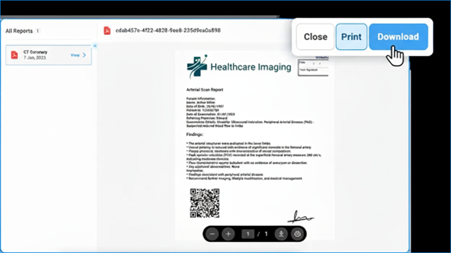
- Click View Reports at the bottom of the selected study to open it.
- Once opened, locate the toolbar at the top of the page and click the Download button.
- You can also click the Download arrow at the bottom of the page.
- To print, use the Print option next to the download button (available both at the top and bottom of the page).
Downloading Images.
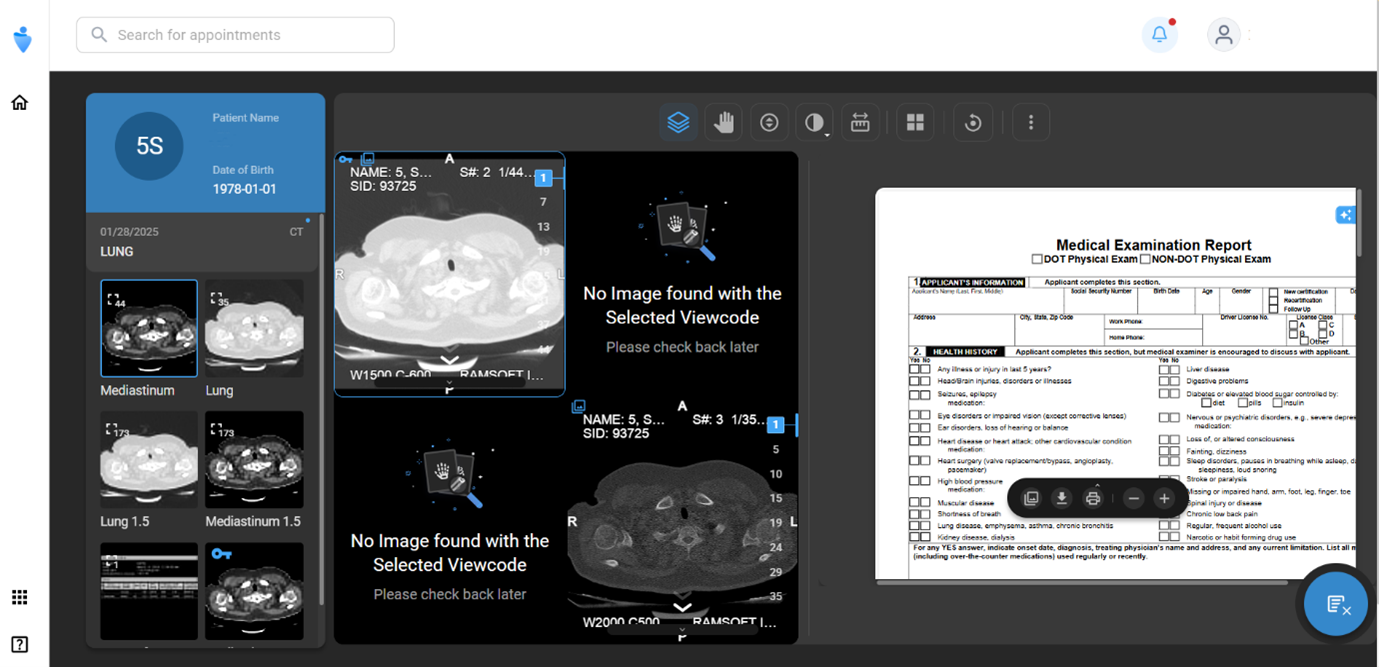
On the Home page, click the Completed Appointments tab and select the study you want to review. Then, click View Images to open and view the available images (if any).
- Using the Document Viewer (Blue Icon)
- After selecting View Image, wait for the image viewer to load.
- If a report or study is available, it will automatically open in the document viewer alongside the image viewer.
- Click the Download button at the bottom of the page to save the file.
- Use the Print button if a printer is connected to your system.
- Click Show Pages to view all pages of your report or document.
- Use Zoom In / Zoom Out for better visibility.
- Downloading Images from the Image Viewer
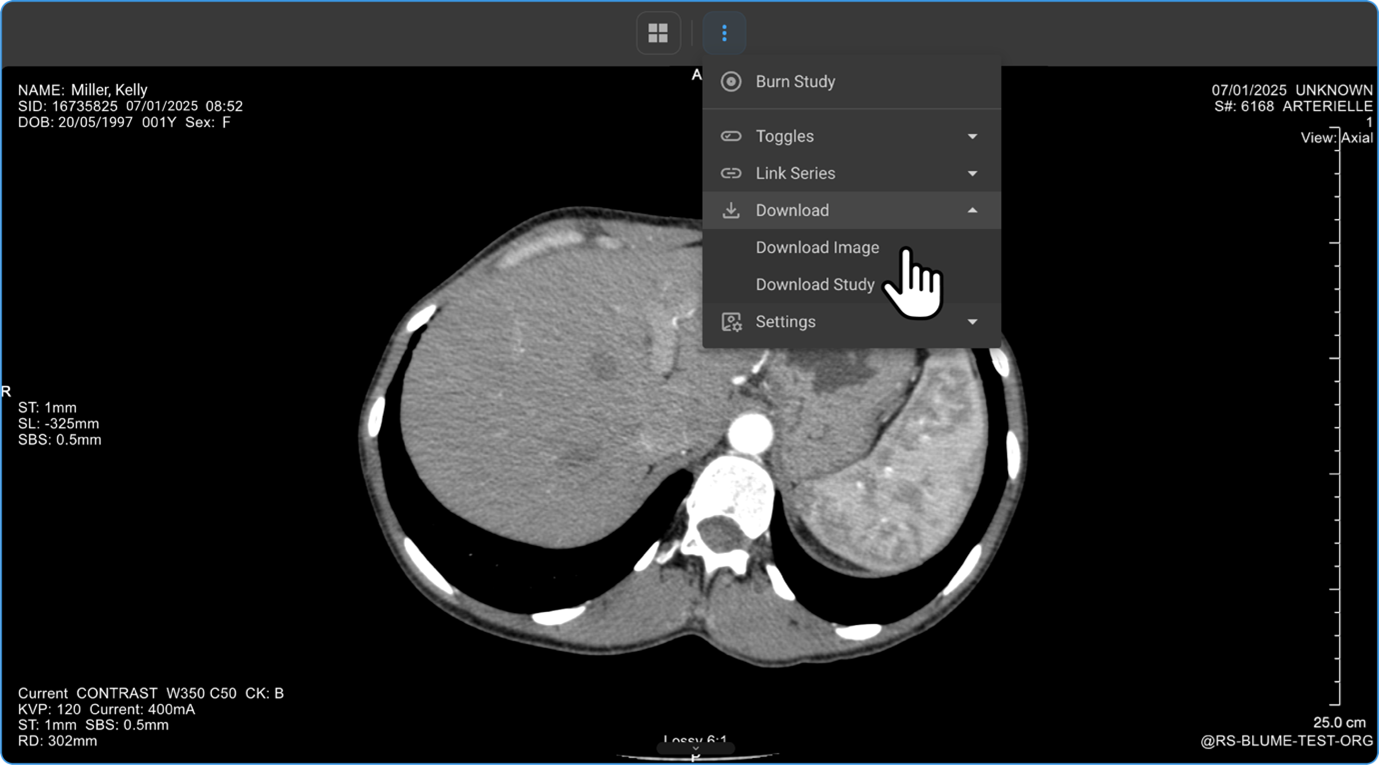
- Click View Images to open the Image Viewer.
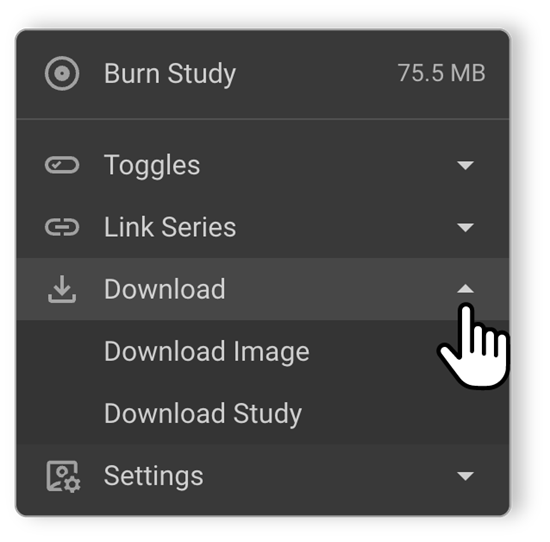
- Click the three-dot menu (⋮) in the viewer toolbar.
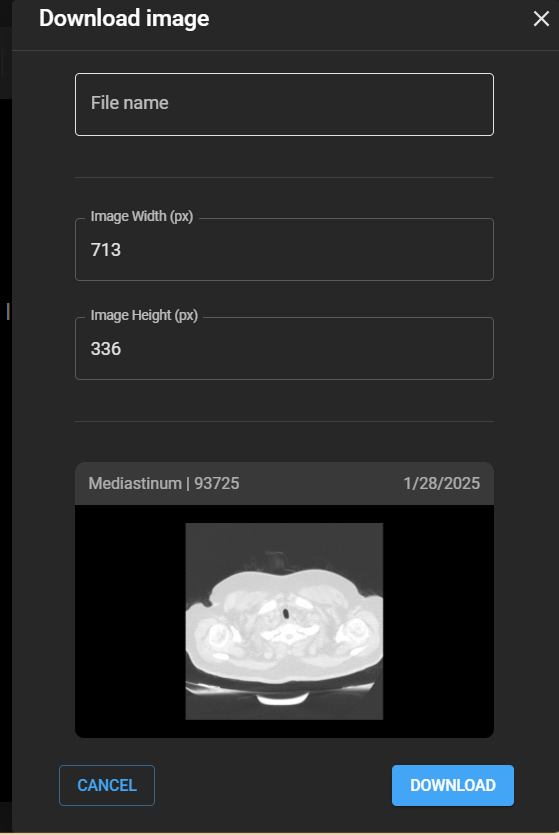
- Select Download → Download Image or Download Study.
- Enter the file name and preferred image resolution (in pixels), then click Download.
On Mobile
- Access Completed Appointments Log in and navigate to Completed Appointments, then select the study you wish to view.
- View Results
Tap View Results to see available options:
- View Images — Opens attached study images in the Blume Image Viewer.
- Swipe up to scroll through series, right to move between frames.
- Pinch to zoom in or zoom out.
- Tap the back arrow (top-left) to exit the viewer.
- Available Reports — Tap the download arrow to save the report or tap the report itself to open it.
- Scroll up/down to navigate through pages.
- Use the download arrow (top-right) to save.
- Tap the back arrow (top-left) to exit.
- Forms — Tap to view registration or clinical forms linked to the study.
- View Images — Opens attached study images in the Blume Image Viewer.
- Download Study (ZIP Format) From the Study Information page, tap the arrow icon next to the Study Information section to download images in ZIP format.
- Download from Home Page Under Completed Appointments, tap the Download Results button to download the study. You can also monitor the download progress on the screen.