Signing In to Blume
The Blume login page is the starting point for all patients accessing the portal. From here, you can sign in to your existing account, register a new account, or change the display language before signing in.
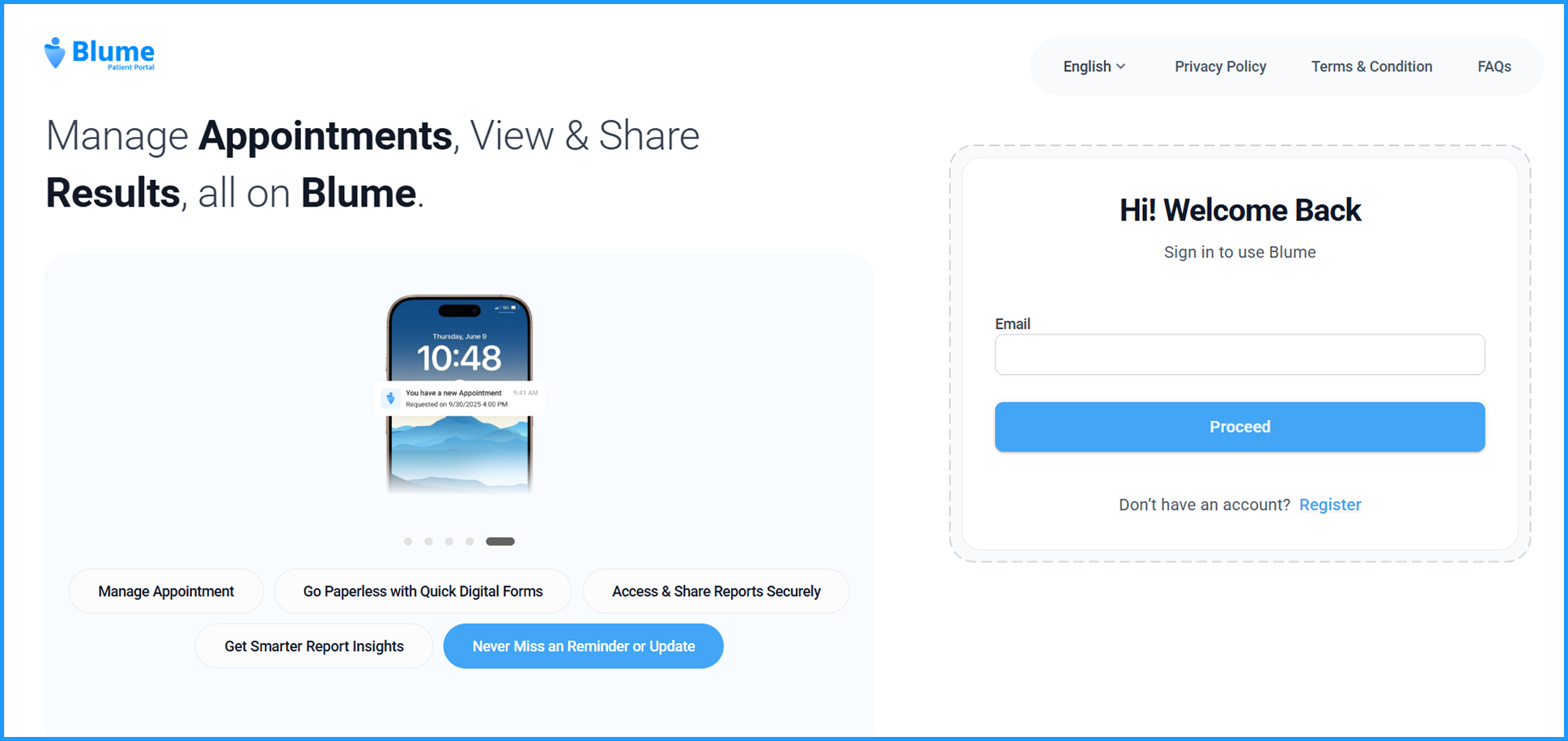
What You See on the Login Page
The login page contains the following elements:
| Element | Description |
|---|---|
| Blume logo | Displayed at the top left of the page. |
| Language selector | Located in the top navigation bar. Allows you to change the portal language before signing in. |
| Privacy Policy | Link to the Blume Privacy Policy. |
| Terms & Condition | Link to the Blume Terms and Conditions. |
| FAQs | Link to frequently asked questions. |
| Feature highlights | A rotating carousel on the left side of the page showcasing key Blume features. |
| Email field | Enter your registered email address to proceed with sign-in. |
| Proceed button | Click to continue to the next step of the sign-in flow. |
| Register link | If you do not have an account, click Register to create one. See the Blume Onboarding Guide for steps. |
How to Sign In
- Open your browser and go to the Blume portal URL provided by your imaging organization.
- On the login page, enter your registered Email address in the Email field.
- Click Proceed.
- Enter your password or 6-digit PIN on the next screen, then click Proceed to complete sign-in.
Note: New users must create a password during sign-up. Existing users who signed up with a PIN can continue using it or upgrade to a password. See the New Signup/Signin Guide for details on password requirements.
Changing the Display Language Before Signing In
Blume supports four languages. You can change the language from the login page before signing in — you do not need to be logged in to do this.
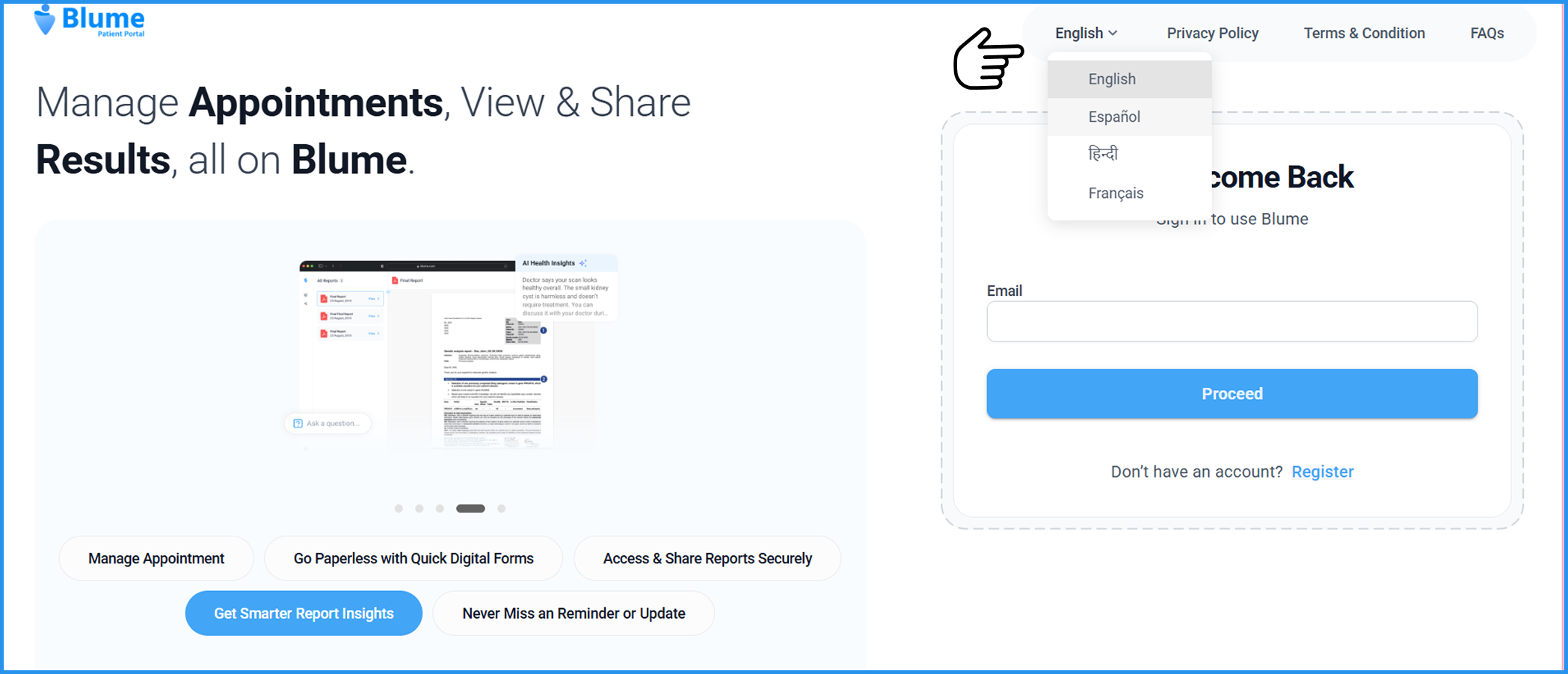
- On the login page, click the English dropdown in the top navigation bar.
- Select your preferred language from the list:
- English
- Español (Spanish)
- हिन्दी (Hindi)
- Français (French)
The portal interface updates immediately to the selected language.
Note: You can also change the language after signing in from Settings → Language. See Changing Language for steps.
Don't Have an Account?
If you are a new user, click the Register link at the bottom of the login panel. This opens the registration page where you can create a Blume account. See the Blume Onboarding Guide for full steps.