Getting Started with Blume
A step-by-step guide to creating your account
When your organization sets up your access to Blume / OmegaAI, you will receive an invitation email titled “OmegaAI Blume Invite Email.”
Please follow these steps to create your account.
1. Open the Invite Email
- Look for an email from OmegaAI / Blume.
- In the email, click Create Account.
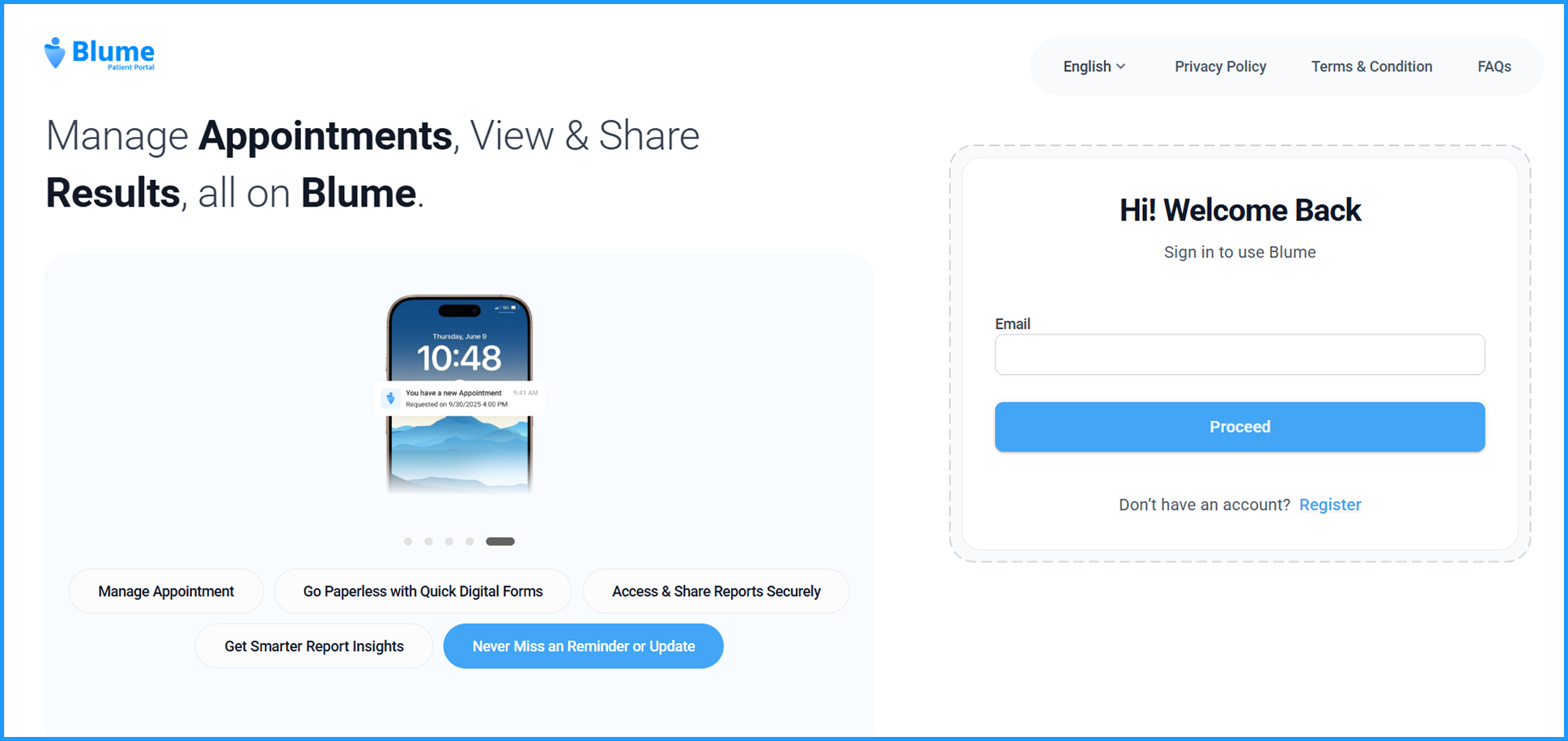
- This will take you to the Registration Page.

2. Choose How to Sign Up
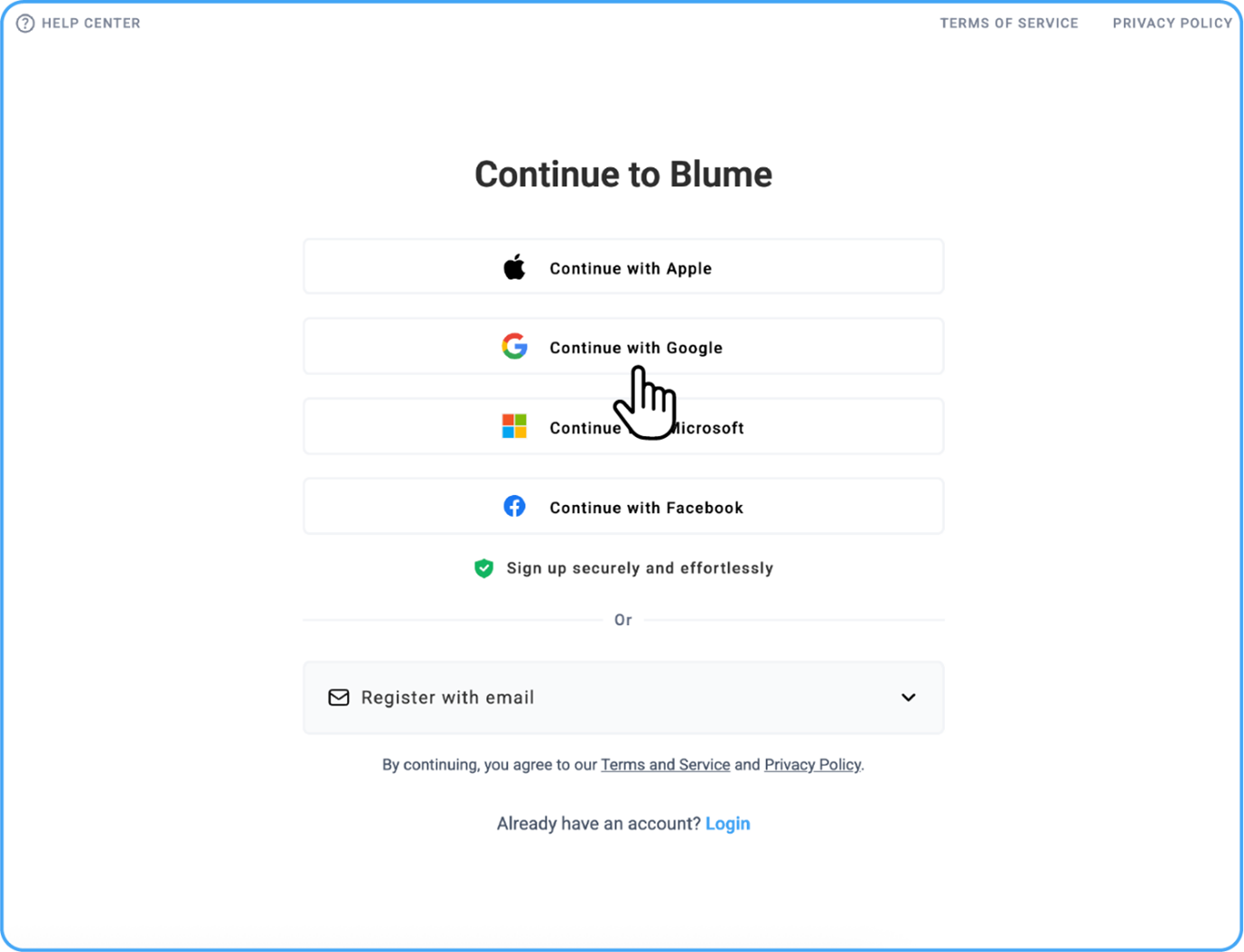
On the Registration Page, you will see multiple sign-up options.
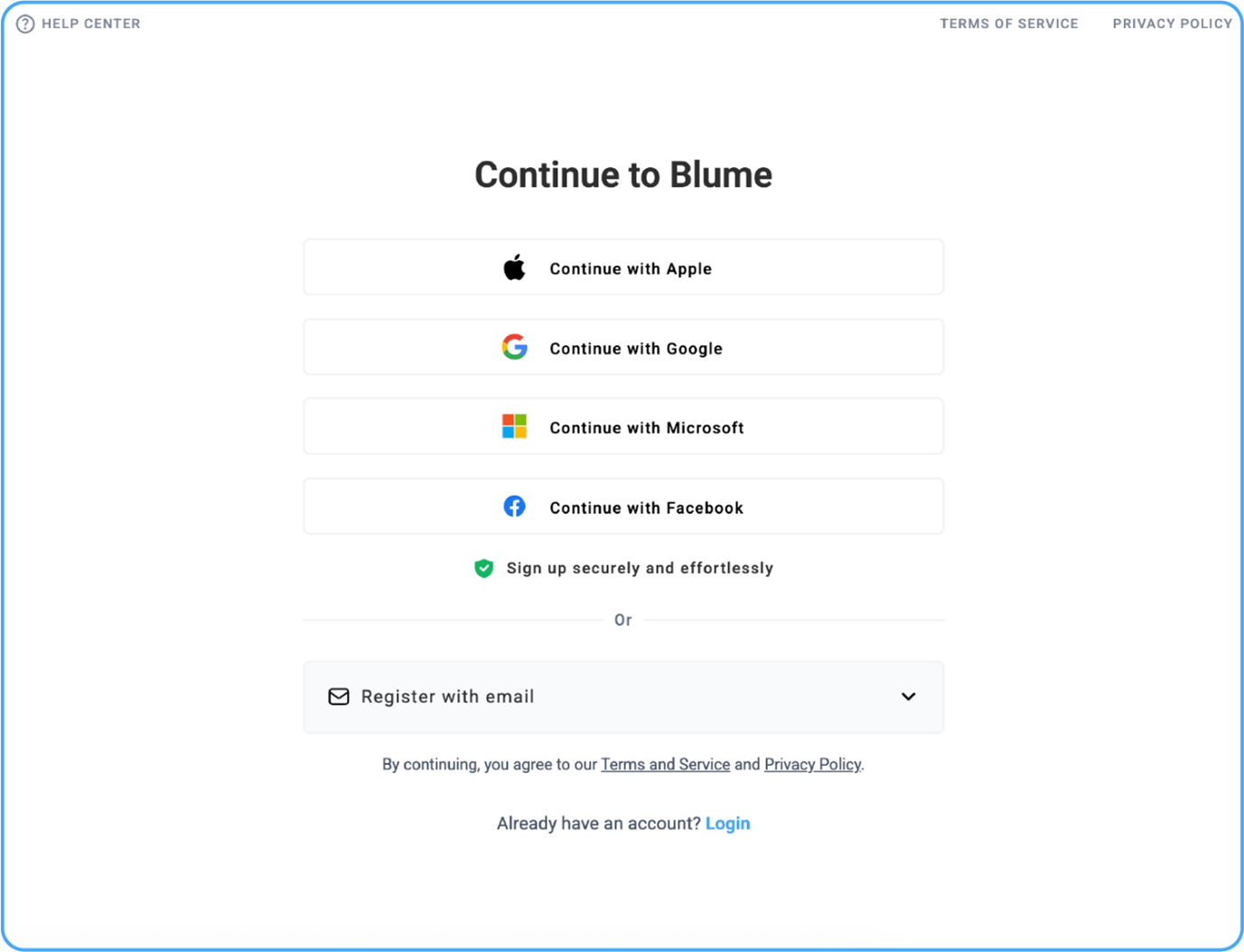
You can log in using one of these services, or by registering with your email:
I. Register with Email
II. Continue with Google
III. Continue with Microsoft
IV. Continue with Apple
V. Continue with Facebook
You will also see a small message below the options: “Sign up securely and effortlessly.”
Note: When signing up with Google, Microsoft, Apple, Facebook, or email, always use the same email address that received your invite. This ensures your account works properly.
I. Register with Email — Step-by-Step (Password/PIN-based sign-up)
Follow these steps to create your Blume / OmegaAI account using your email and the new password-based authentication, and the existing PIN-based authentication.
A. Password-based authentication
1. Start
- On the Sign-Up screen, choose Register with Email.
2. Email
- Check the pre-filled email address from your invite link and keep it unchanged during sign-up.
3. Date of Birth
- Enter your date of birth by either :
-
Clicking the calendar icon and selecting the date, or
-
Typing year, month, day manually.
-
Tip: You don’t need to scroll through the full calendar, use direct entry if you prefer.
4. Name
- Enter your First Name (Given Name) and Last Name (Family Name).
5. Create a Password
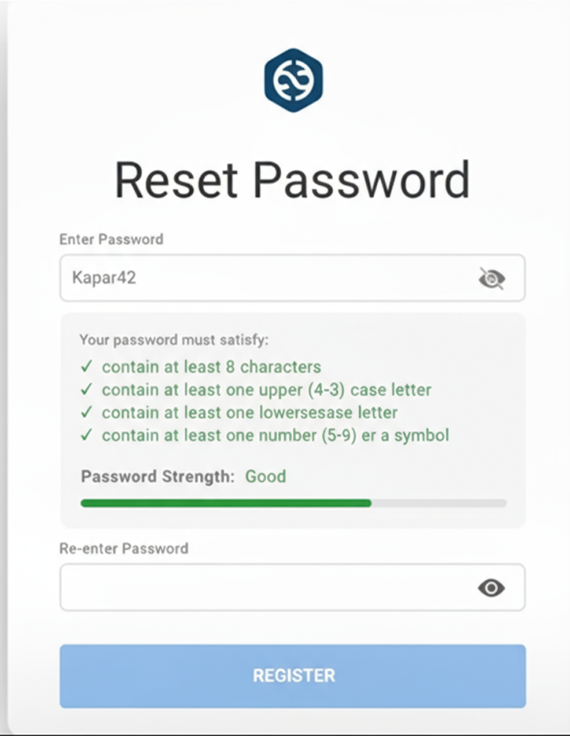
New users will now create an alphanumeric password instead of a PIN. This update enhances account security and ensures compliance with HITRUST standards.
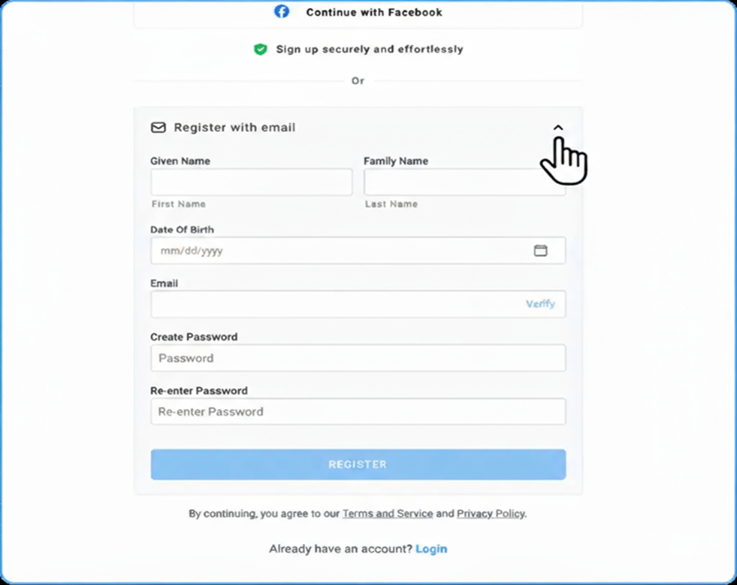
Your password must meet the following requirements:
-
Be at least 8 characters long
-
Include at least one uppercase and one lowercase letter
-
Include at least one number or special character (for example: ! @ # $)
Examples:
Recommended: Radiology@123, SecureLogin#2025
Not Recommended: abcdef, 12345678
(You can click the eye icon to view the characters as you type.)
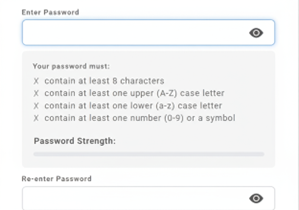
6. Confirm Password
-
Enter the same password in the Re-enter Password field.
-
Both entries must match exactly.
7. Password Strength
- As you type, the password strength indicator will display whether your password is Weak, Good, or Strong, based on its complexity.
8. Complete Sign-Up
-
You cannot proceed until your password meets all requirements and both password fields match.
-
When ready, click Continue to finish registration.
Note: Existing users can continue logging in to their Blume or OAI accounts using their current 6-digit PIN. However, it is strongly recommended that they upgrade to the new password-based login for enhanced security. Detailed instructions are provided in the New Signup/Sign-in section.
B. PIN-based authentication
-
Start
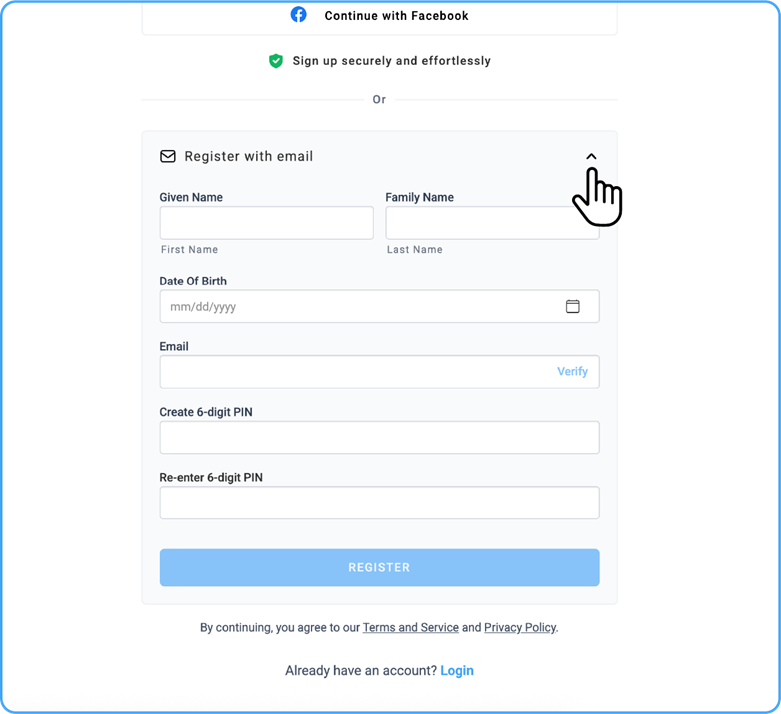
- On the Sign-Up screen, choose Register with Email.
-
Email
- Check the pre-filled email address from your invite link and keep it unchanged during sign-up.
-
Date of Birth
- Enter your date of birth by either
- Clicking the calendar icon and selecting the date, or
- Typing year, month, day manually.
Tip: You don’t need to scroll through the full calendar — use direct entry if you prefer.
- Enter your date of birth by either
-
Name
- Enter your First Name (Given Name) and Last Name (Family Name).
-
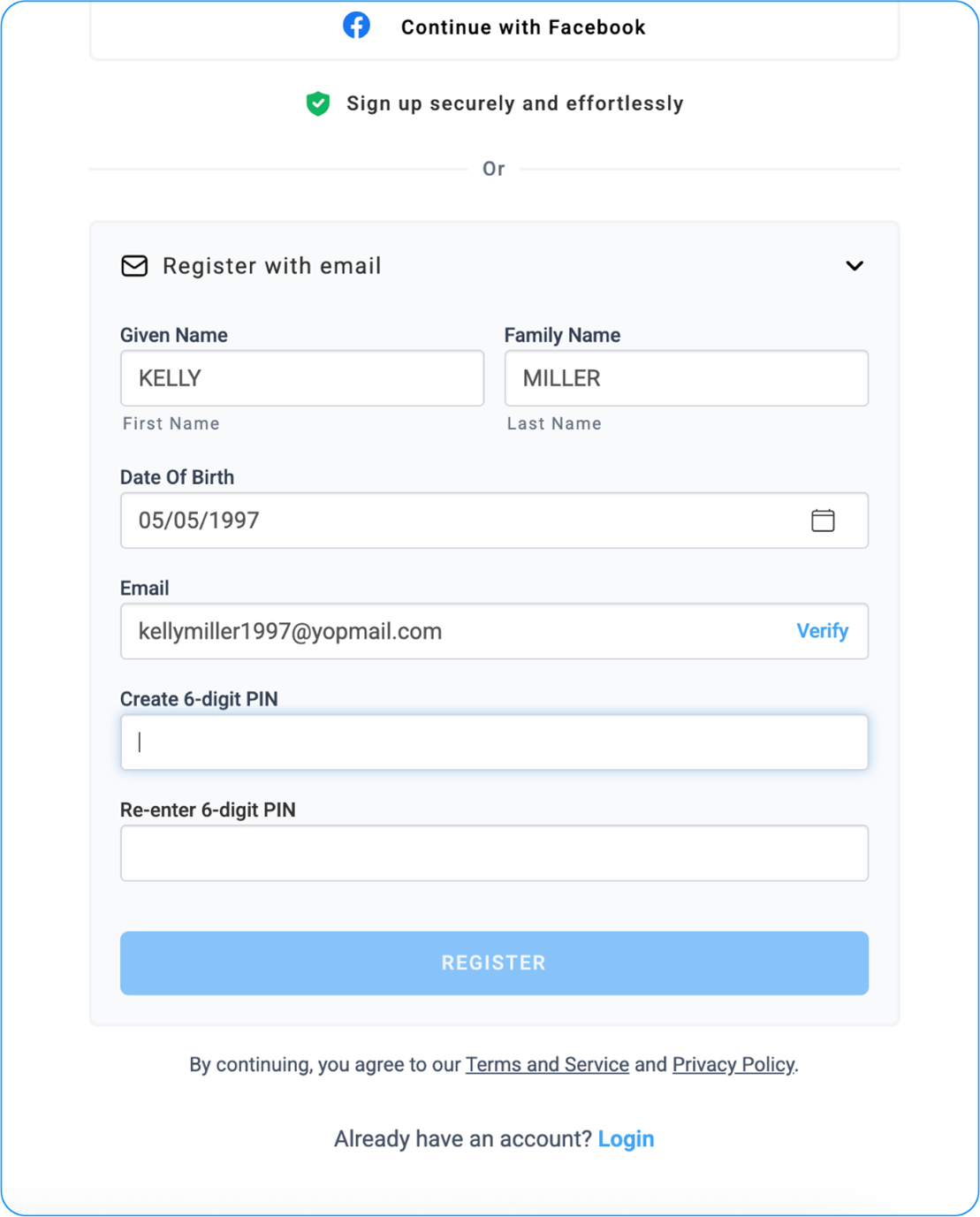
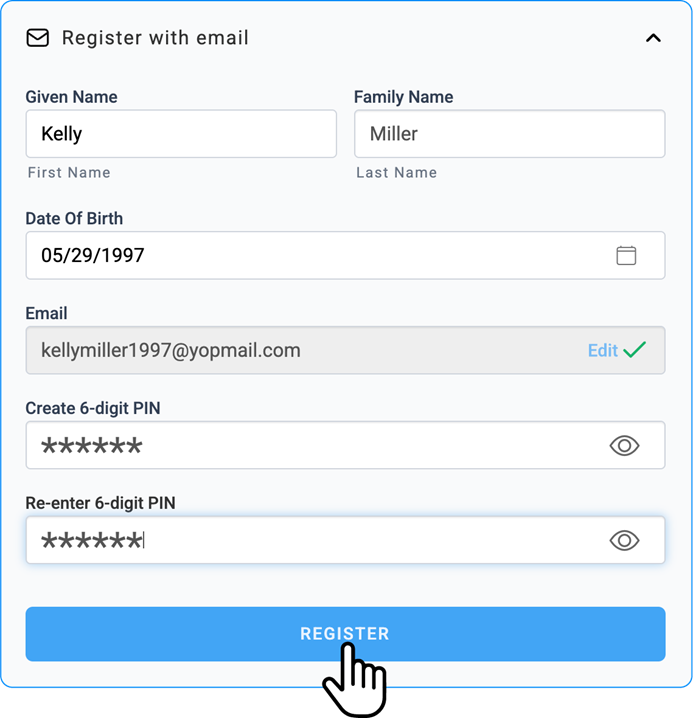
Create a 6-digit PIN using only numeric values.
-
Click the eye icon to view the digits you enter.
-
Re-enter the same 6-digit PIN in the confirmation box.
-
Both PIN entries must match.
-
When ready, click Register to complete your setup.
Note: Existing users can continue signing in to their Blume or OmegaAI accounts using their current 6-digit PIN. However, it is strongly recommended to switch to the new password-based login for improved security. You can upgrade anytime—refer to the New Sign-Up/Sign-In section for detailed steps.
II. Sign Up with Google
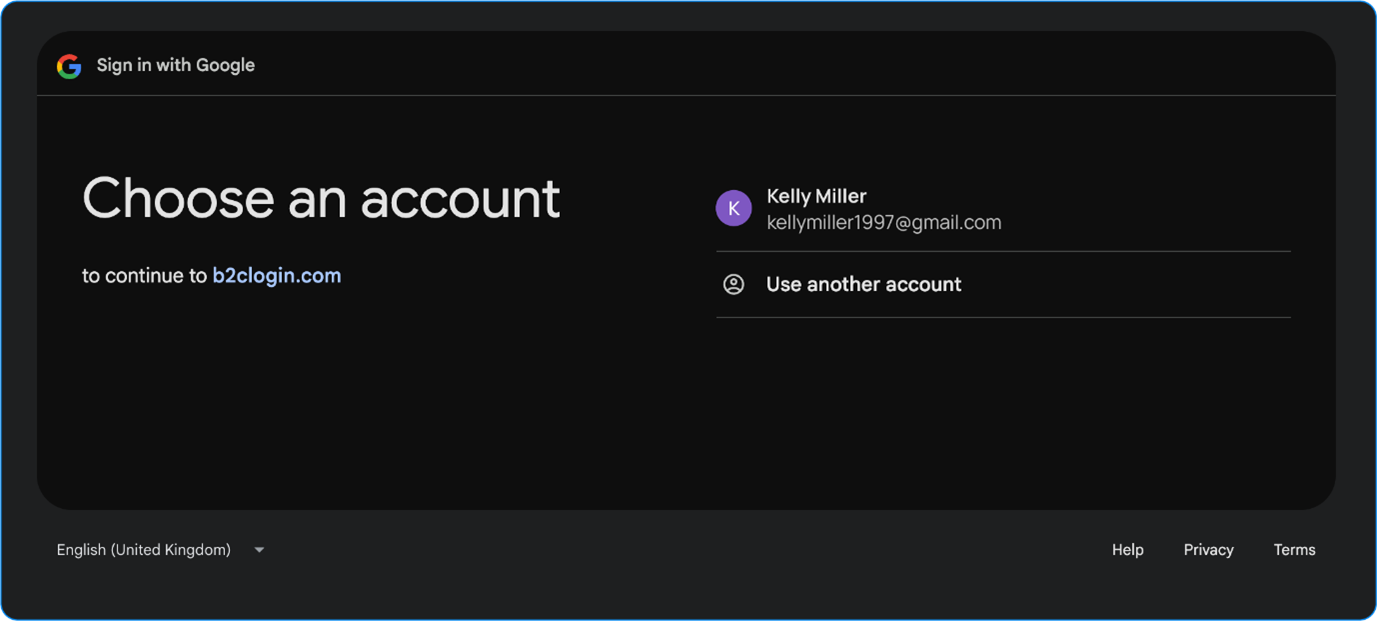
- Click Continue with Google.
- If you already see your email listed, click it.
- If not, select Use another account.
- Enter your email address, password, and then click Next.
III. Sign Up with Microsoft
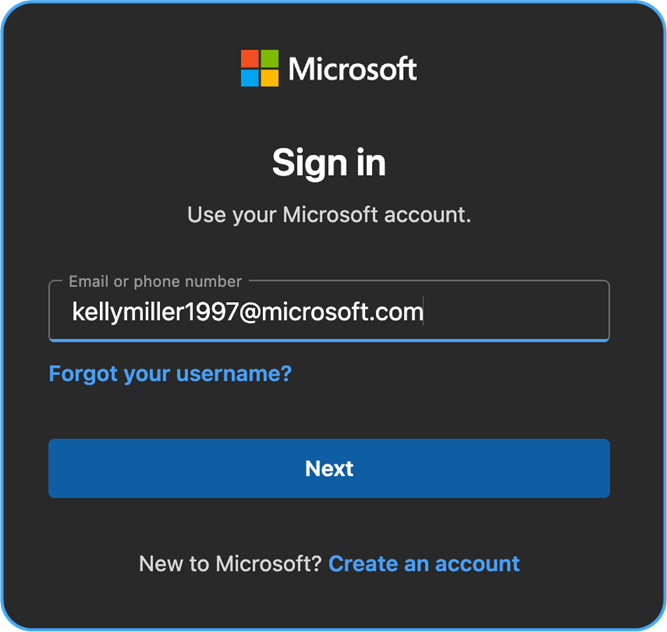
- Click Continue with Microsoft.
- Choose your email from the list or click to add a new one.
- Make sure you use the same email you gave to your organization.
IV. Sign Up with Apple
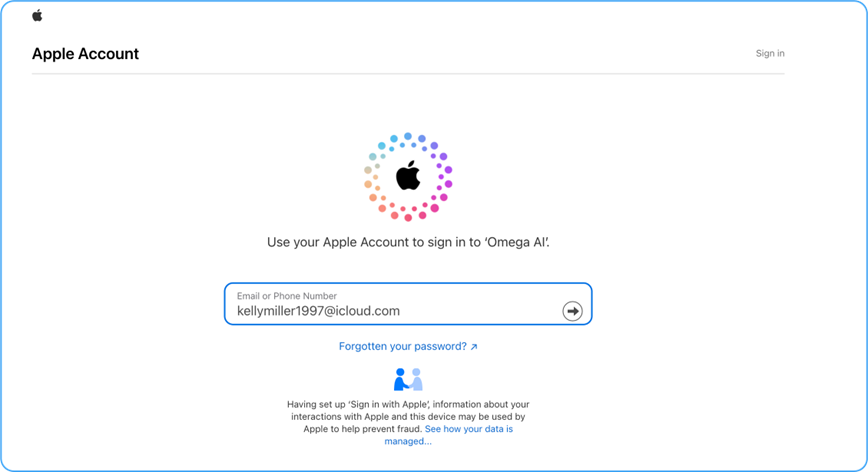
- Click Continue with Apple.
- Enter your Apple ID (email address) and password.
V. Sign Up with Facebook
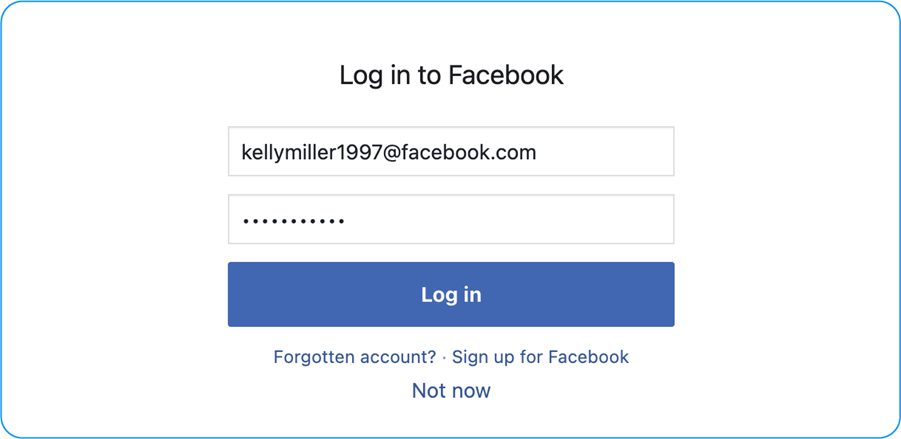
- Click Continue with Facebook.
- Enter your Facebook email/username and password.
- Click the Log in option to continue.
3. Welcome to Blume / OmegaAI
If you signed up using Google, Microsoft, Apple, or Facebook, you will be asked to enter your name and date of birth before completing registration.
Once this step is complete, you will be directed to the Home Page of Blume/OmegaAI. You are now ready to start using the system!