Blume App Guide: How to Add a Family Member
Blume makes it easy for family members—like parents or guardians—to stay informed about a patient’s health journey. This guide walks you through the steps to securely link a family member’s account to a patient’s profile in the Blume app.
Example Scenario
A mother wants to view her child’s health information, such as appointments and completed studies, through the Blume app.
Purpose
Enable an authorized family member (e.g., parent, guardian, or caregiver) to view a patient’s appointments, studies, and other shared health information in the Blume mobile app.
Step-by-Step Instructions
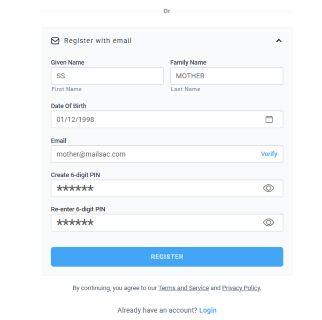
Step 1: Family Member Signs Up in Blume
-
The mother (or any family member) must create a Blume account using her email address.
-
This is done by downloading the Blume app and completing the sign-up process.
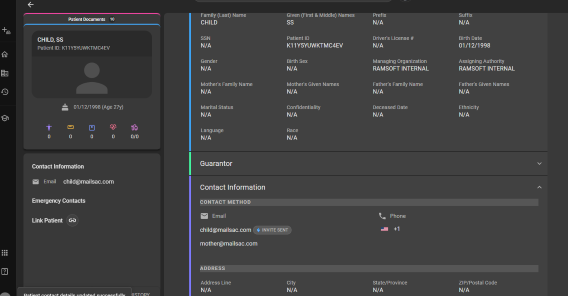
Step 2: Update Patient’s Contact Information in OmegaAI
- The same email address used by the mother must be added to the child’s contact details in the OmegaAI system.
- This step is typically handled by the healthcare provider or system administrator.
Step 3: Access is Automatically Granted
Once the email is linked to the child’s contact record in OmegaAI:
-
The mother can log in to Blume and view the child’s information.
-
The mother can book the appointments for the child.
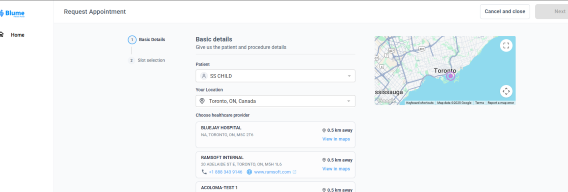
- She will be able to see appointments, completed studies, and other shared health data.
Why This Works
Blume uses the email address as a secure identifier. By linking a family member’s email to a patient’s contact record, the app ensures that only authorized individuals can access sensitive health information.
Note
This method allows families to stay connected and informed. Whether it’s a parent monitoring a child’s care or a caregiver supporting a loved one, Blume provides a secure and seamless way to share health information within the family.