Additional Email Verification Flow for Study Access
Is your study not linked to your current login, or are you having trouble accessing it?
Overview
This feature allows users to securely access studies even if the shared email address does not match their login email. By verifying alternate emails, users can link accounts, reduce confusion, and access studies without duplicate accounts.
Key Benefits
- Improved Access: Securely verify alternate emails to view shared studies.
- Better Experience: Reduces login/email mismatches.
- Seamless Integration: Works within study sharing and appointment workflows.
- Less Support Load: Fewer tickets from access issues.
Integration Points with Other OmegaAI Features
1. Study Sharing
This feature directly integrates with OmegaAI's study sharing workflows. When a study is shared via email, users can now verify ownership of the invited email if their logged-in account does not match. This ensures users always have access to studies shared with them.
2. My Appointments in Blume
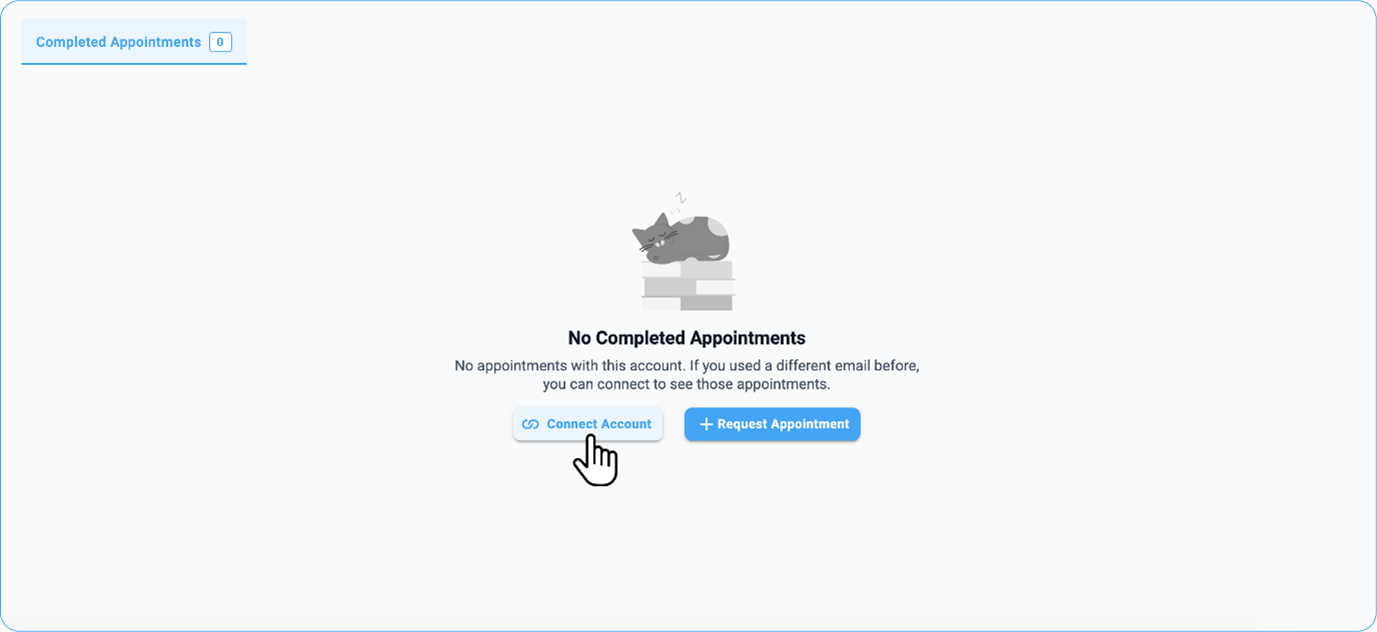
The updated empty state for appointments introduces the "Connect Accounts" button, allowing users to find and link past studies or appointments associated with alternate email addresses. This builds on existing appointment workflows, ensuring users can view their complete history across linked accounts.
3. Authentication
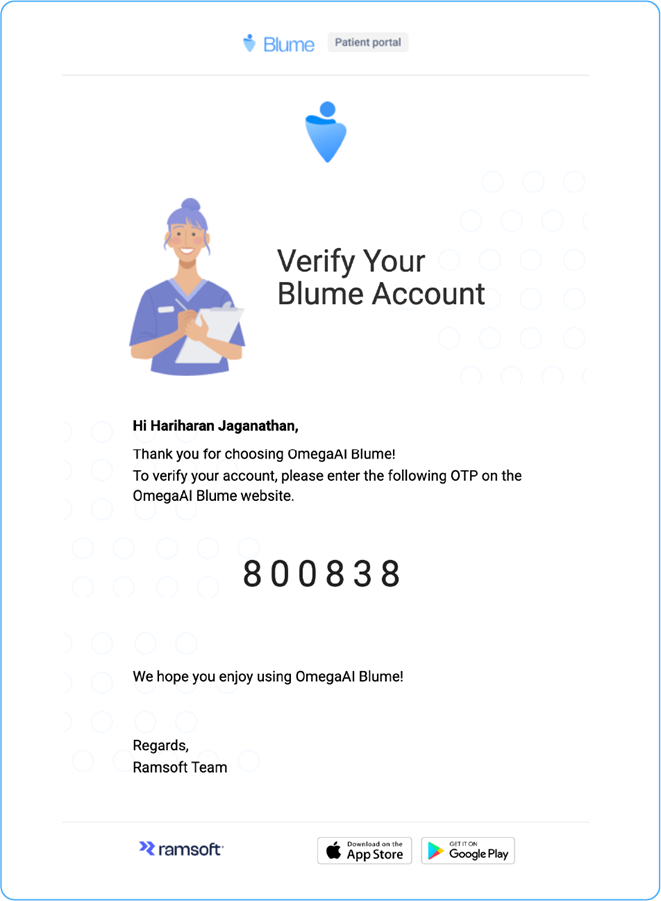
The email verification flow leverages OmegaAI's secure authentication processes, including OTP (One-Time Password) verification. OTP ensures the invited email is securely linked to the user’s session.
Feature Walkthrough
Scenario 1: Accessing a Shared Study with an Invited Email
- Log in with your primary email.
- If it doesn’t match the invited email, a pop-up appears.
- Click Continue to verify or Cancel to close.
- Enter the OTP sent to the invited email and click Verify.
- Use/Click Resend Code if needed.
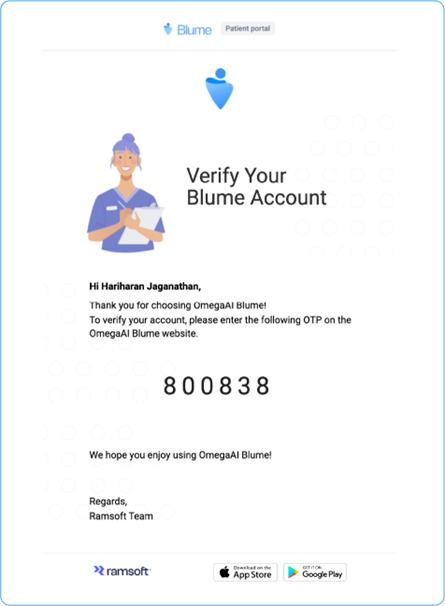
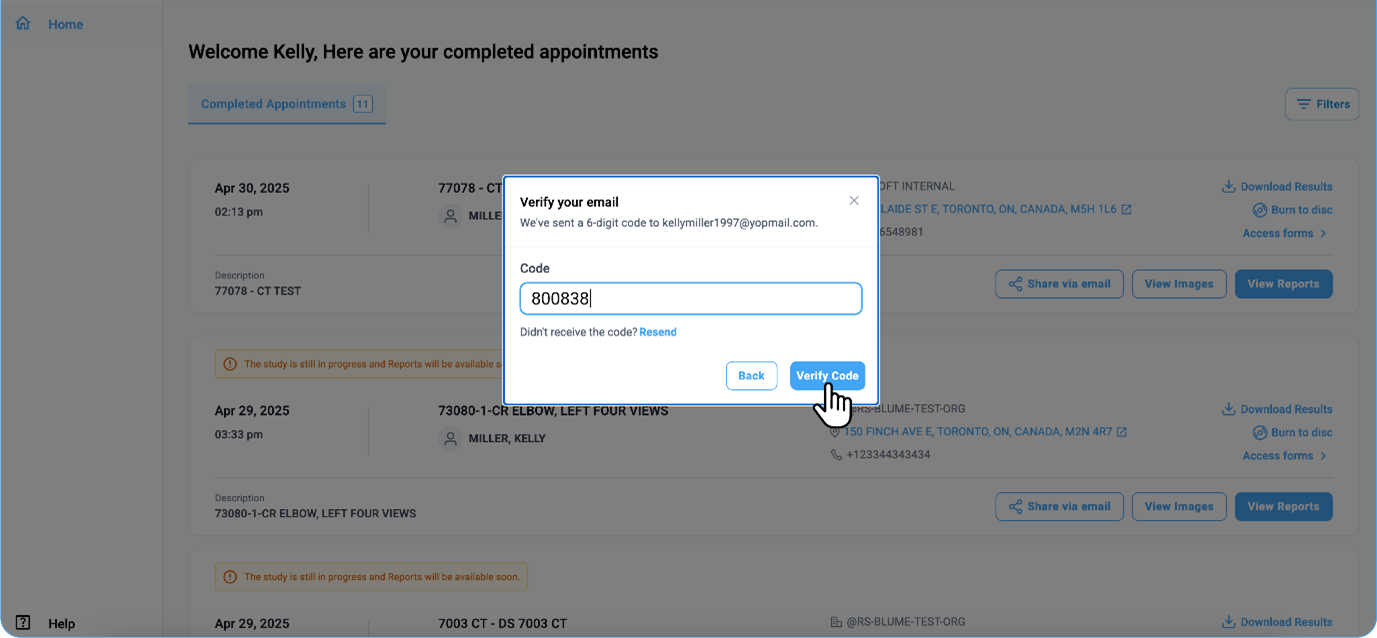
- Once verified, the study linked to the invited email is displayed for your session.
Scenario 2: Viewing Past Appointments or Studies
- If no appointments are found, the system displays, “No appointments with this account. If you used a different email before, you could connect to see those appointments.”
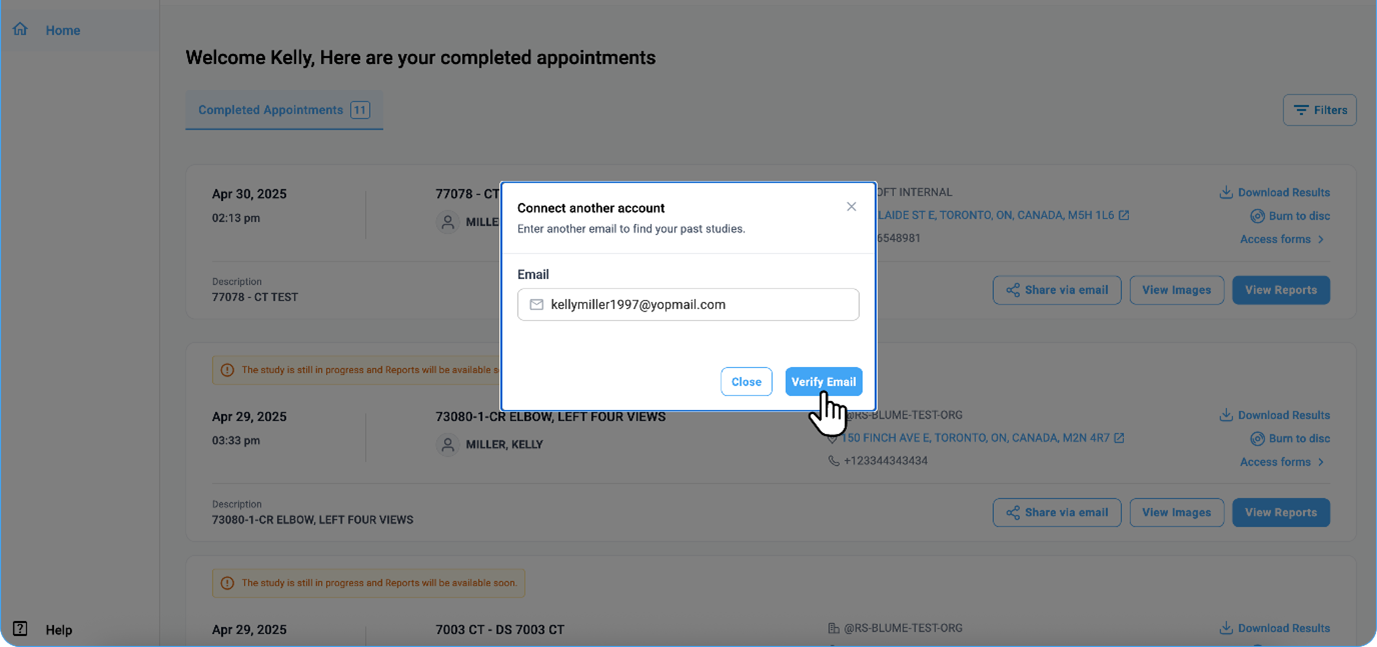
- Click Connect Accounts to link another email. Enter the alternate email, receive the OTP, and click Verify.
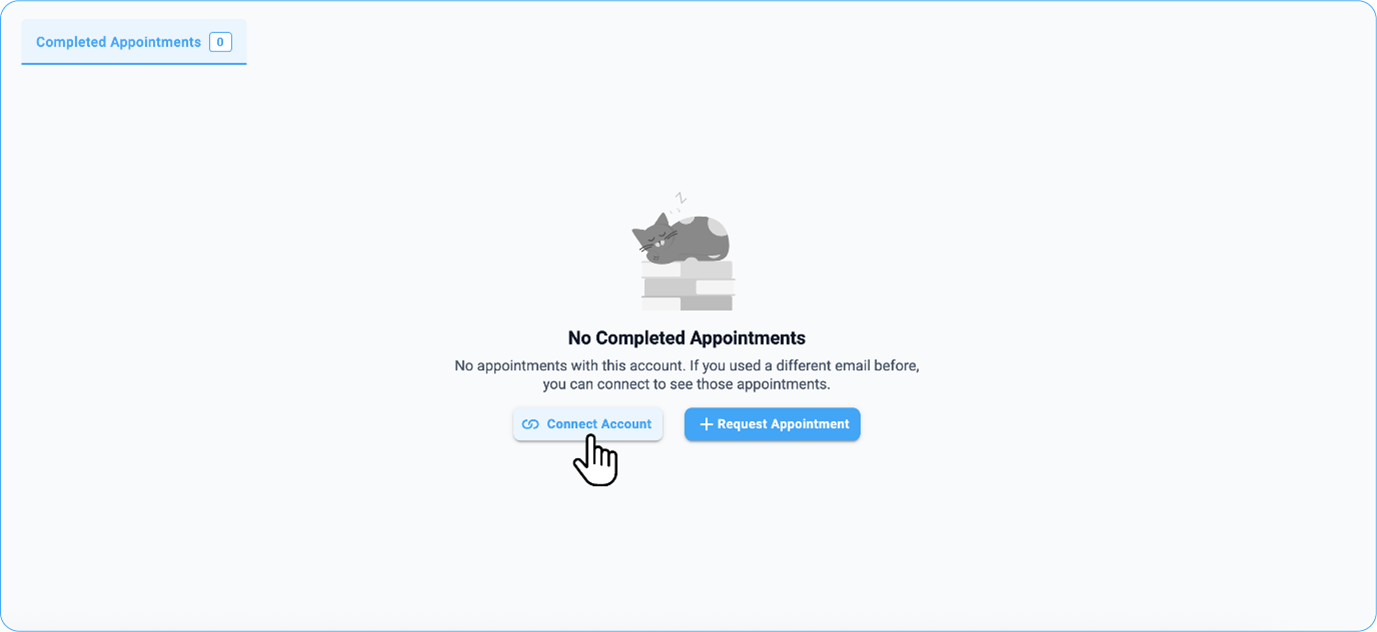
- Once verified, past studies and appointments from the alternate email are displayed.
Troubleshooting
Common Issues and Solutions
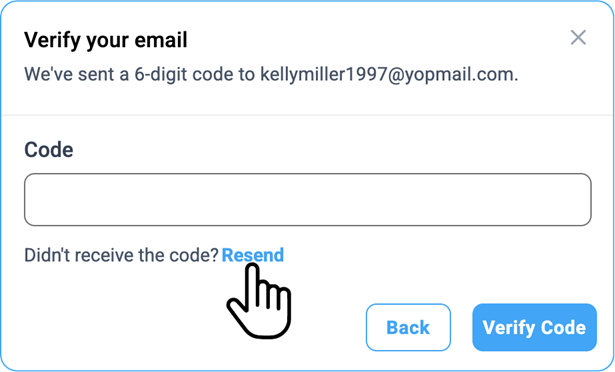
1. Did Not Receive OTP
- Solution: Click Resend Code to generate a new OTP. Ensure the invited email is accessible and check spam or junk folders.
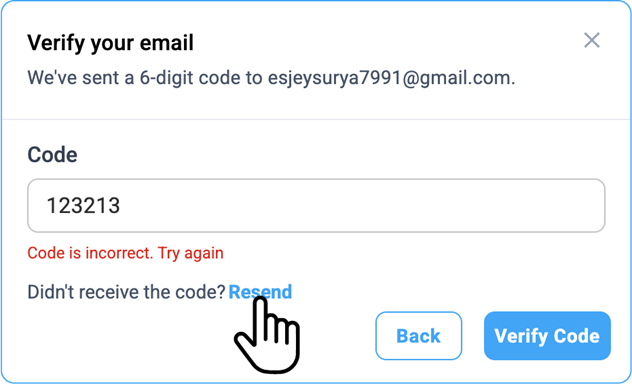
2. Invalid OTP
- Solution: Verify the entered code and try again. If the issue persists, click Resend Code to request a new OTP.
3. Alternate Email Not Found
- Solution: Confirm the email used to share the study.
4. Access Denied After Verification
- Solution: Ensure the OTP verification was successful. If access remains restricted, log out and log back in.