Renaming Uploaded Supporting Document and Document Date
Document details can be edited from the Documents section within the Profile page. Users can update the document name and modify the document date to maintain better organization and accuracy.
How to Edit Document Details
-
Go to the Profile Page
Click your username at the top-right corner of the home page and select Profile. Open the Documents tab.
-
Select the Document to Edit
Locate the document you want to update and click the Edit (pen) icon on the right side of the file.
-
Update the Document Name
-
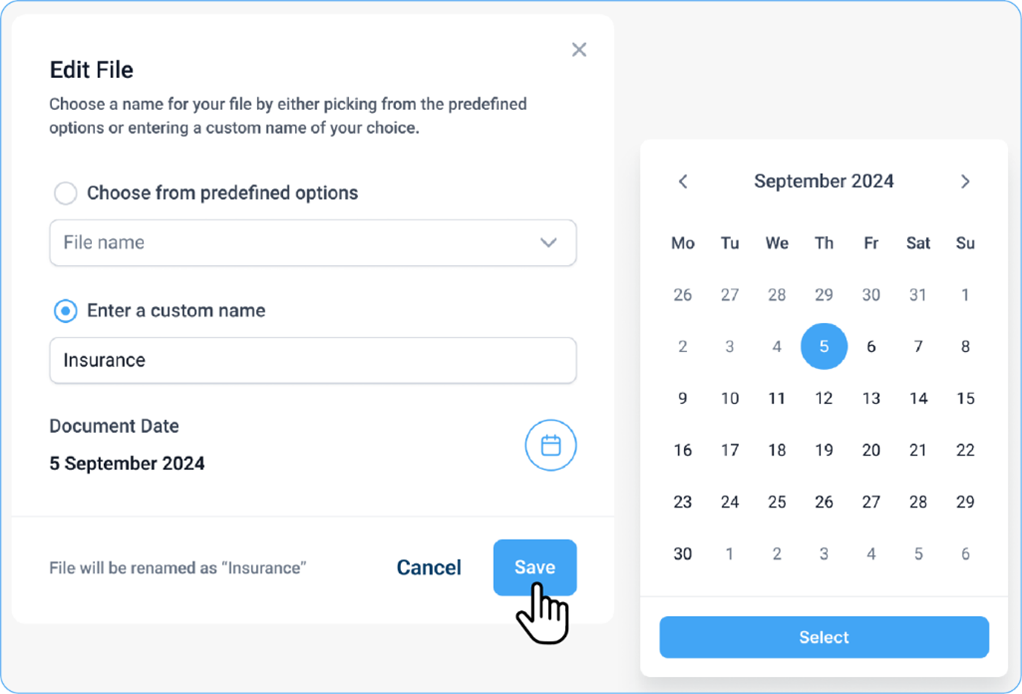
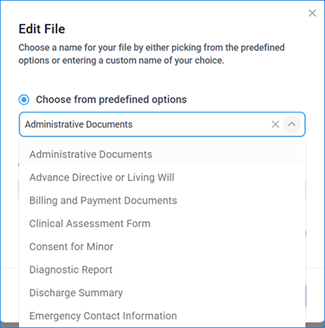
You can rename the file using: a. Custom names (e.g., "Insurance Card", "Referral Form"), or
b. Predefined categories available in the dropdown list.
-
-
Modify the Document Date
- In the Edit File window, find the Document Date field below the name section.
- Click the Calendar icon next to the date.
- Scroll through the calendar and select the appropriate date.
- Click Save to apply the changes.
Note:
-
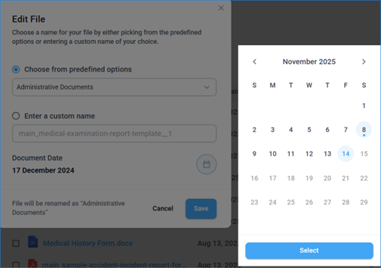
The updated document date will immediately appear in the document list.
-
DICOM files/Images cannot be renamed or edited, as their information is stored within the file metadata.