Biometric Authentication
Available on the mobile application (Android/iOS) only. Not available on the web version.
Overview
Biometric Authentication allows you to access the application using your device’s security method — such as a fingerprint, PIN, or pattern — without entering your password each time.
Supported methods:
- Fingerprint
- Device PIN
- Pattern
- Face recognition (if supported)
How Biometric Authentication Works
Biometric Authentication is activated after your first successful login.
First-Time Login
- Open the mobile application.
- Log in using your Email ID, Password, and OTP verification.
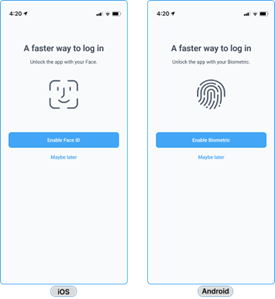
- The app will ask whether you want to enable Biometric Authentication.
You will see two options:
- Enable Biometric — Biometric Authentication is turned on for future logins.
- Maybe Later — You can enable it from Profile at any time.
Logging In After Setup
Once Biometric Authentication is enabled, open the app and authenticate using your device’s security method. You will be logged in without entering your password.
Enabling or Disabling from Profile
You can enable or disable Biometric Authentication at any time:
- Open the mobile application.
- Go to Profile.
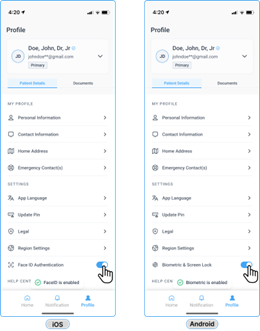
- Select Biometric and Screen Lock.
- Toggle the switch to ON or OFF.
A confirmation message will appear once the change is saved.
Choosing “Maybe Later”
If the user selects Maybe Later:
- Biometric authentication will not be enabled immediately.
- A toast message appears, indicating that the feature can be enabled later from the Profile settings.
Enabling Biometric from Profile
Users can enable or disable biometric authentication at any time from the Profile section.
Navigation
- Open the mobile application
- Go to Profile
- Locate the option Biometric and Screen Lock
- Toggle the switch to ON or OFF
Toggle Actions
When turned ON
- A message appears confirming, “Biometric is turned on”.
When turned OFF
- A message appears confirming, “Biometric is turned off”.
Session Timeout
As a security measure, the app locks automatically if it remains inactive for 15 minutes. You will be prompted to authenticate once to continue.
Any interaction within the app — such as clicking a button, navigating between screens, or tapping anywhere — resets the 15-minute timer.
The timeout also applies when:
- The app is running in the background.
- The app is closed and reopened.
Failed Biometric Attempts
The system allows three attempts to authenticate using biometric or device authentication.
If authentication succeeds
- The user is taken back to the application home page.
If authentication fails three times
- The authentication prompt closes.
- The user is redirected to the Login page.
The user must then complete the full login process:
- Enter Email ID
- Enter Password
- Complete OTP verification
- Access the application again.
Summary
Biometric authentication improves application security while maintaining ease of access for users.
Key benefits include:
- Faster re-authentication
- Improved security for unattended devices
- Protection against unauthorized access
- Flexible enable/disable options from Profile settings.